Add a Helplexa chat widget to your HubSpot website
Add the Helplexa chat widget to your HubSpot website so visitors can start conversations with your team directly from your site.
This guide shows you how to copy your Helplexa widget code and add it to a HubSpot website page.
See our HubSpot demo site
Before you start
You will need:
A Helplexa workspace.
A chat widget created in Helplexa.
Access to edit your HubSpot website
Your Helplexa widget installation code
Steps
Copy your Helplexa embed code.
In your Helplexa workspace:
Open Widgets.
Choose the widget you want to add to your HubSpot website.
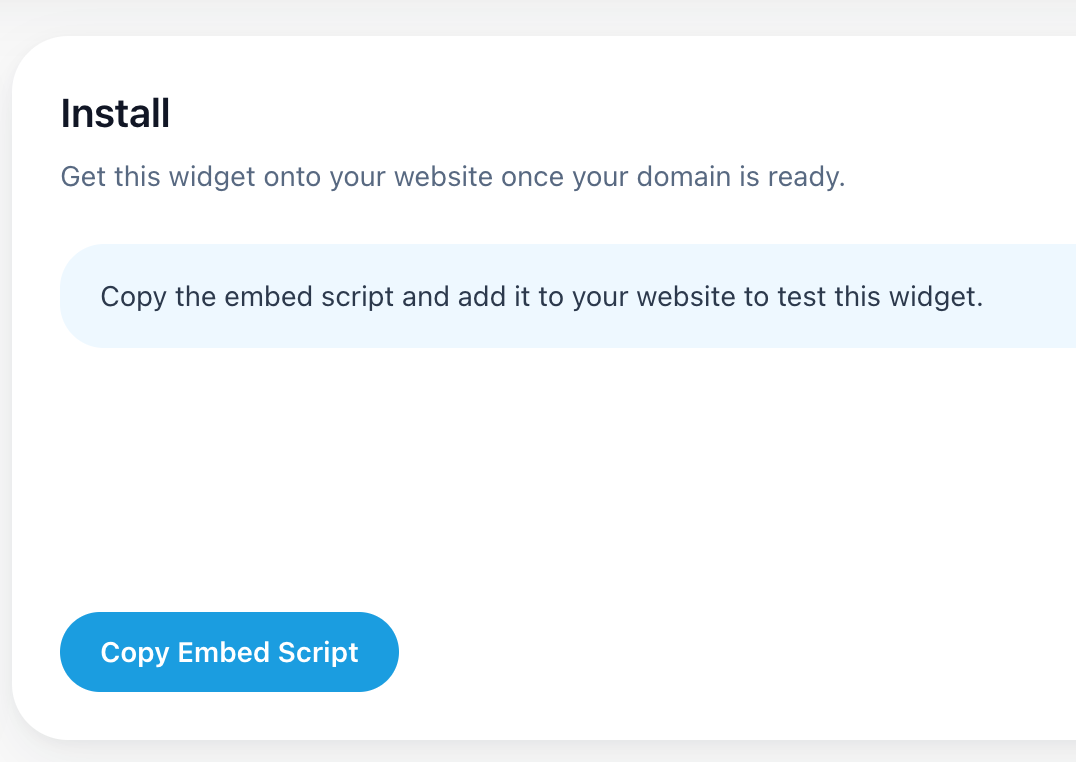
Copy the widget embed code.
Open your HubSpot website page
In HubSpot:
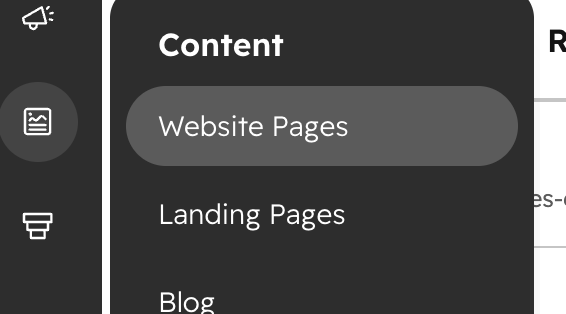
Open your Website Pages or Landing Pages.
Go to the page editor.
Open the page Settings.
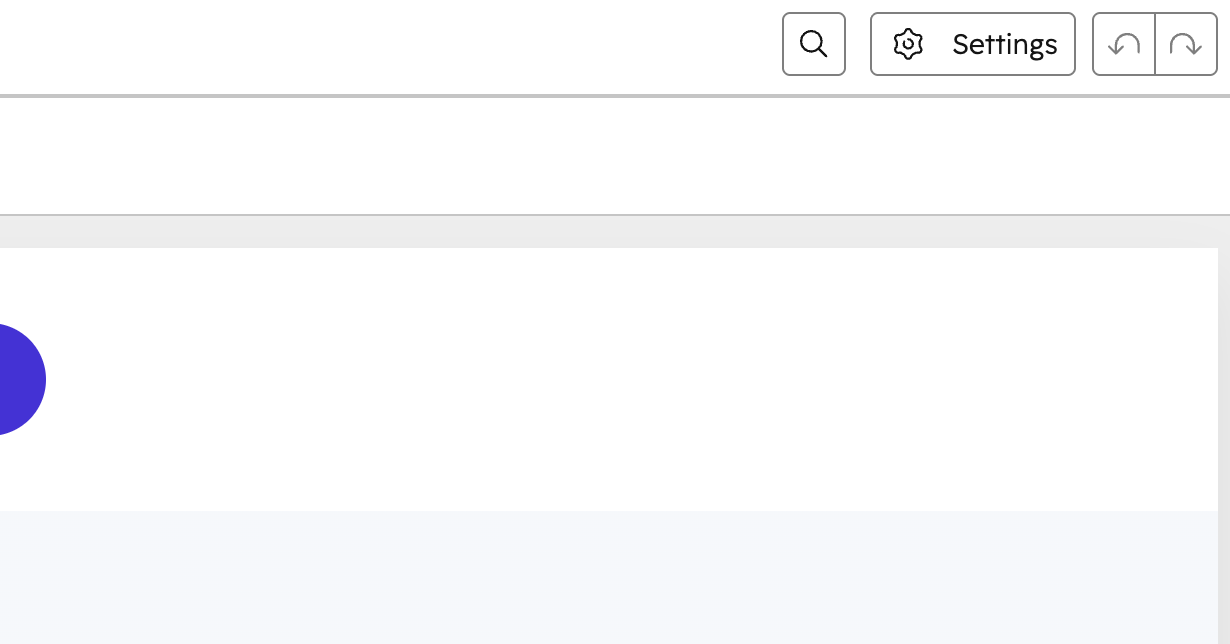
In the settings modal, Find the section for Footer HTML.
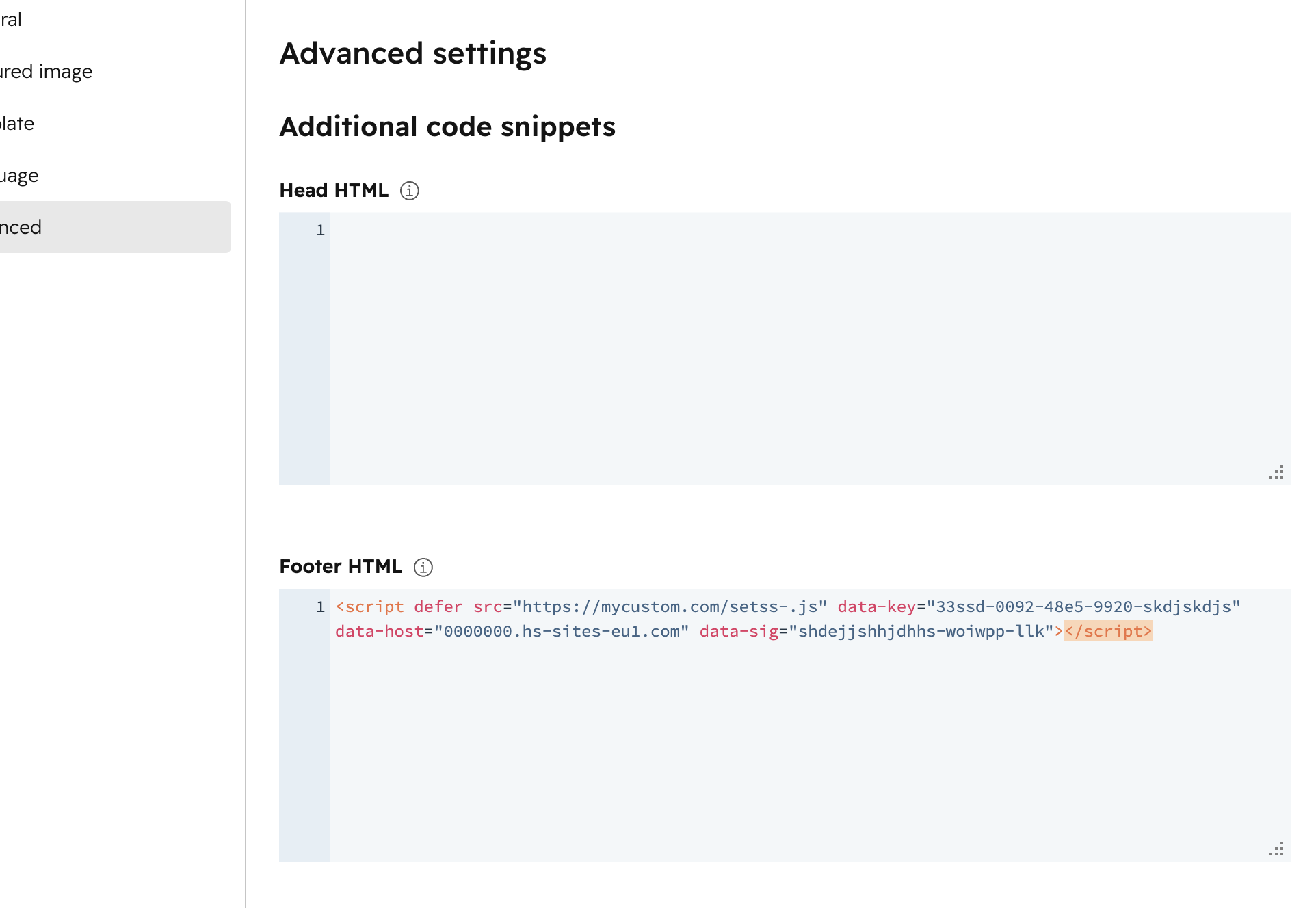
Paste the embed code
Paste your Helplexa widget code into the Footer HTML area.
Save your changes.
Publish or update the page.
Check your website
Open your HubSpot website page in a browser.
The Helplexa chat widget should appear in the bottom corner of the page.
If the chat widget does not appear straight away, refresh the page or open it in a private browser.
You can view our demo page here
Related articles
Was this article useful?