Connect Your Wix Website to Helplexa
Connect your Wix website to Helplexa to add live chat and access your Wix product catalogue while speaking with customers.
Before you start
You will need:
A Helplexa workspace.
Permission to manage integrations in Helplexa.
Access to the Wix website you want to connect.
Permission to install apps on the Wix websites.
Wix Stores configured if you want to share products in conversations from Helplexa.
Steps
Open Helplexa Integrations.
Sign in to Helplexa and open Integrations.
Find Wix, then select Connect
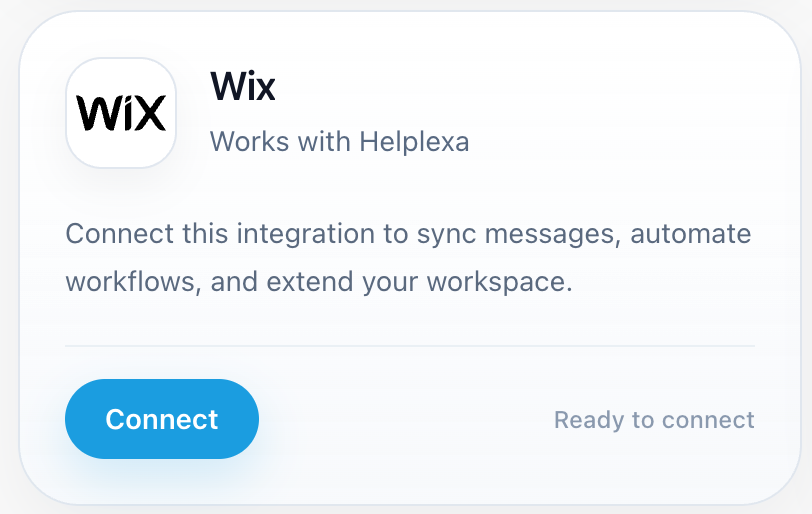
Select Your Wix Website
You will be redirected to the Helplexa App on Wix.
Click Add to Site
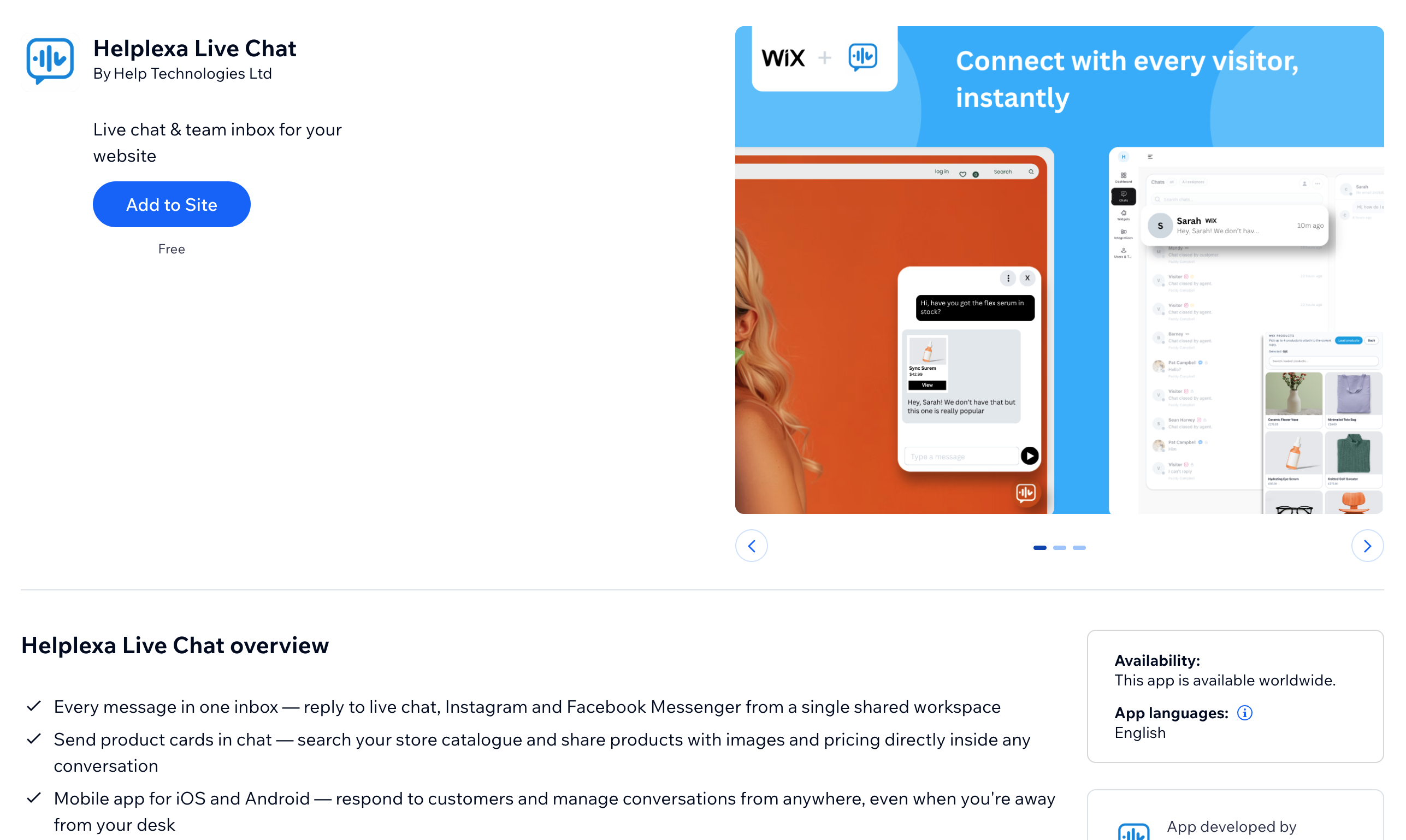
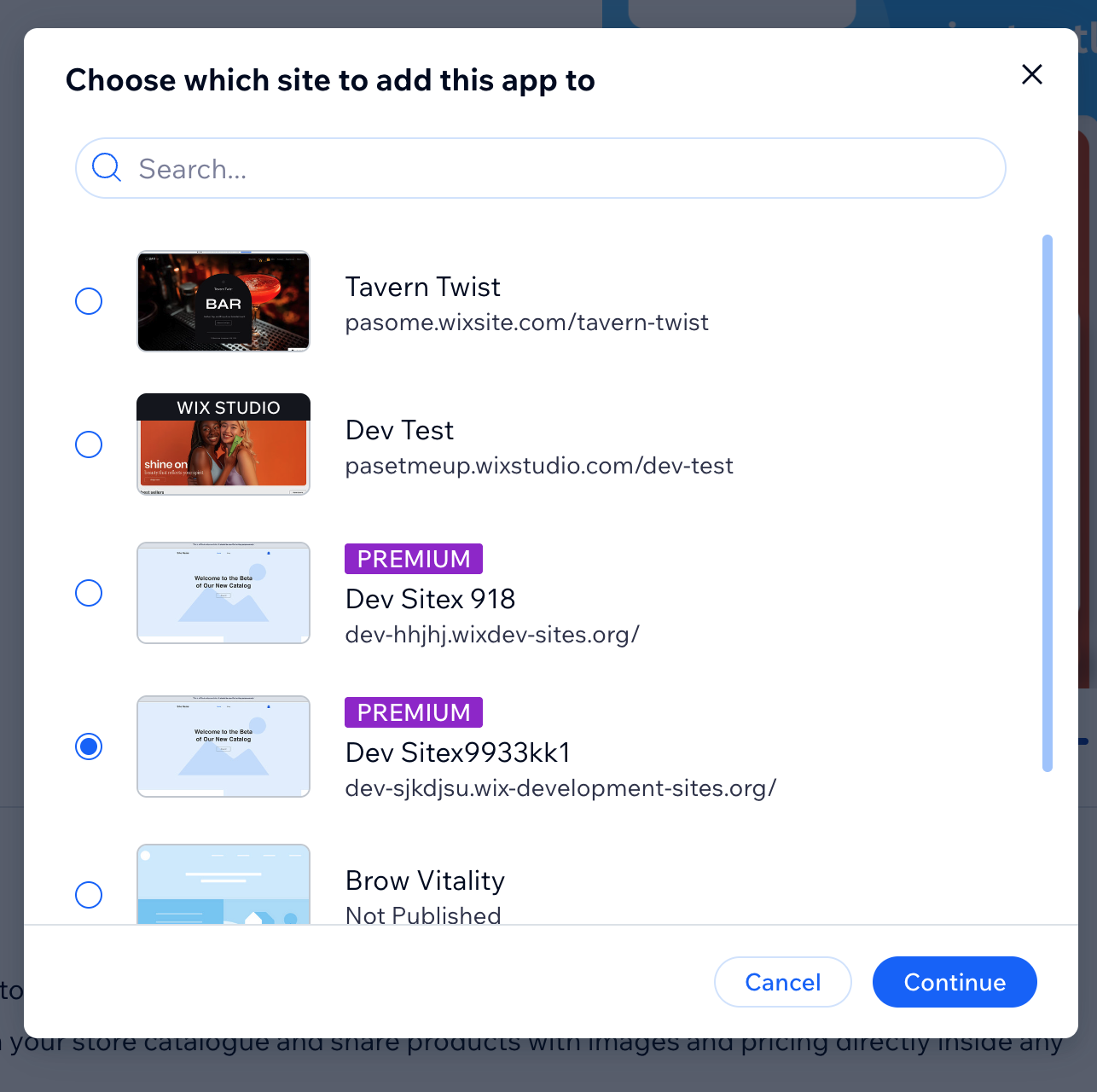
Login to Wix if you are not already.
From the list, select the website you want to connect then click Continue
You will be redirected to Helplexa, login to your account.
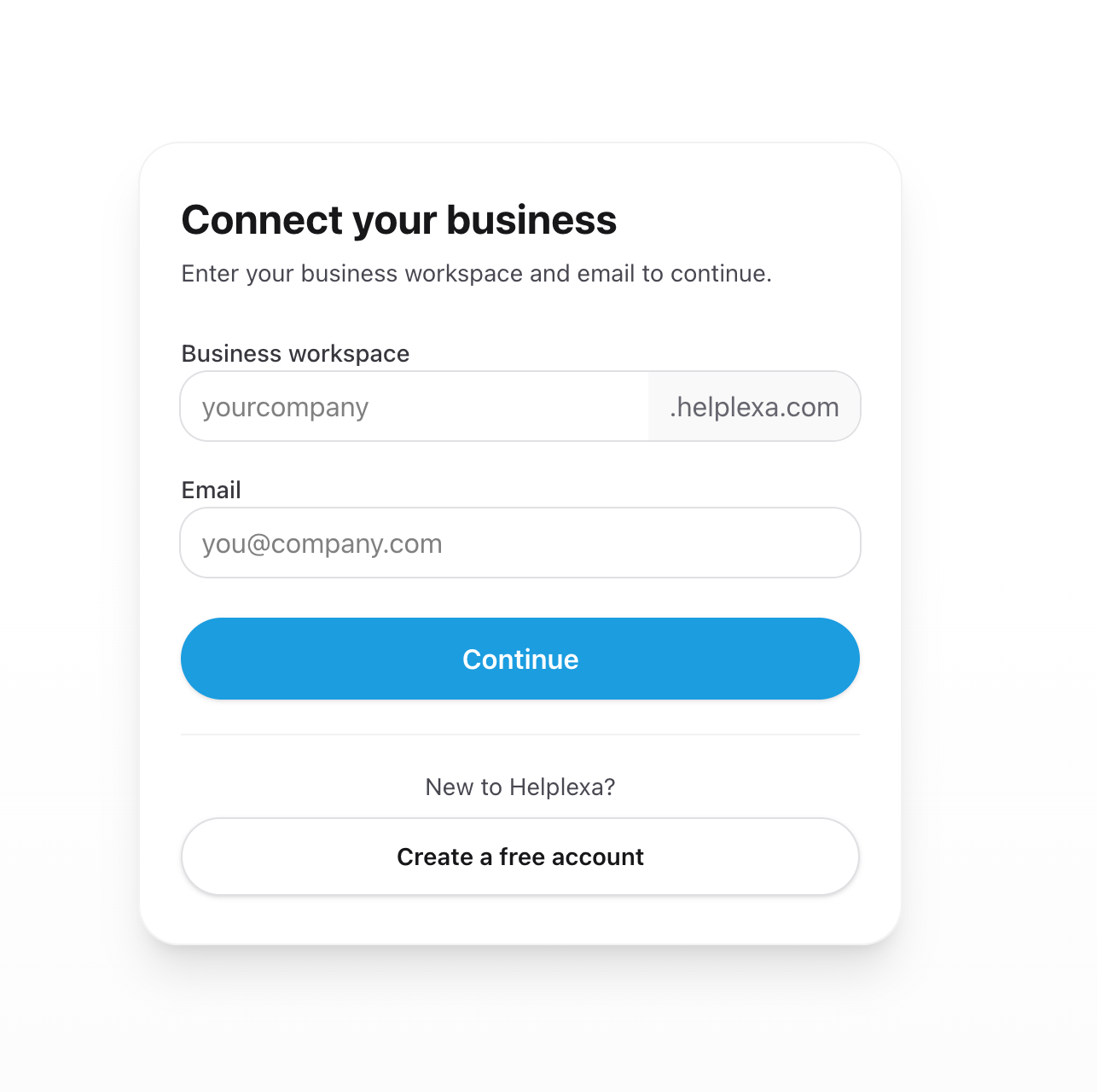
Confirm and Choose Your Helplexa Workspace.
Click Approve and continue
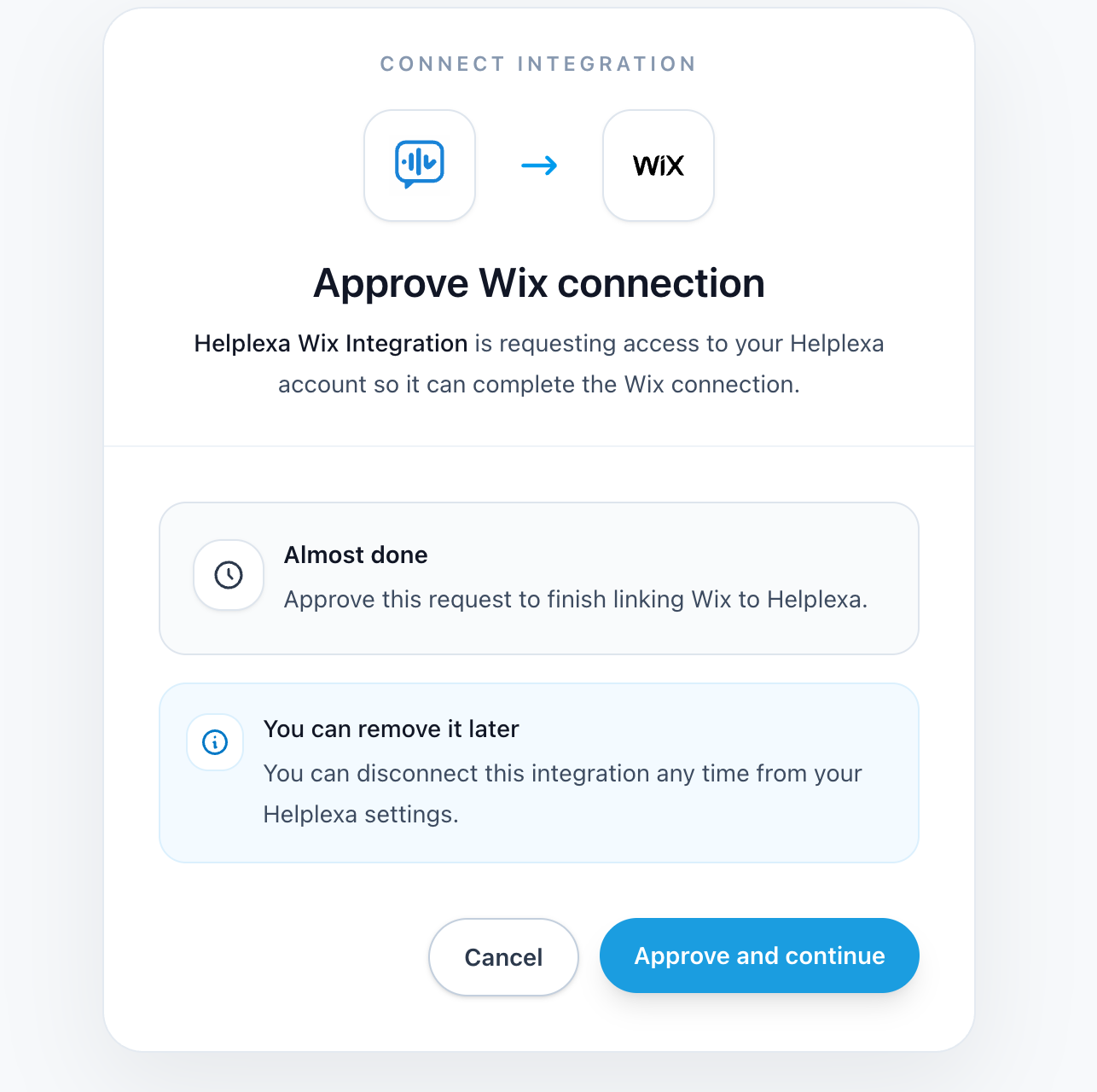
NOTE: If you belong to more than 1 Helplexa Workspace, choose the Workspace you want to connect to and Continue.
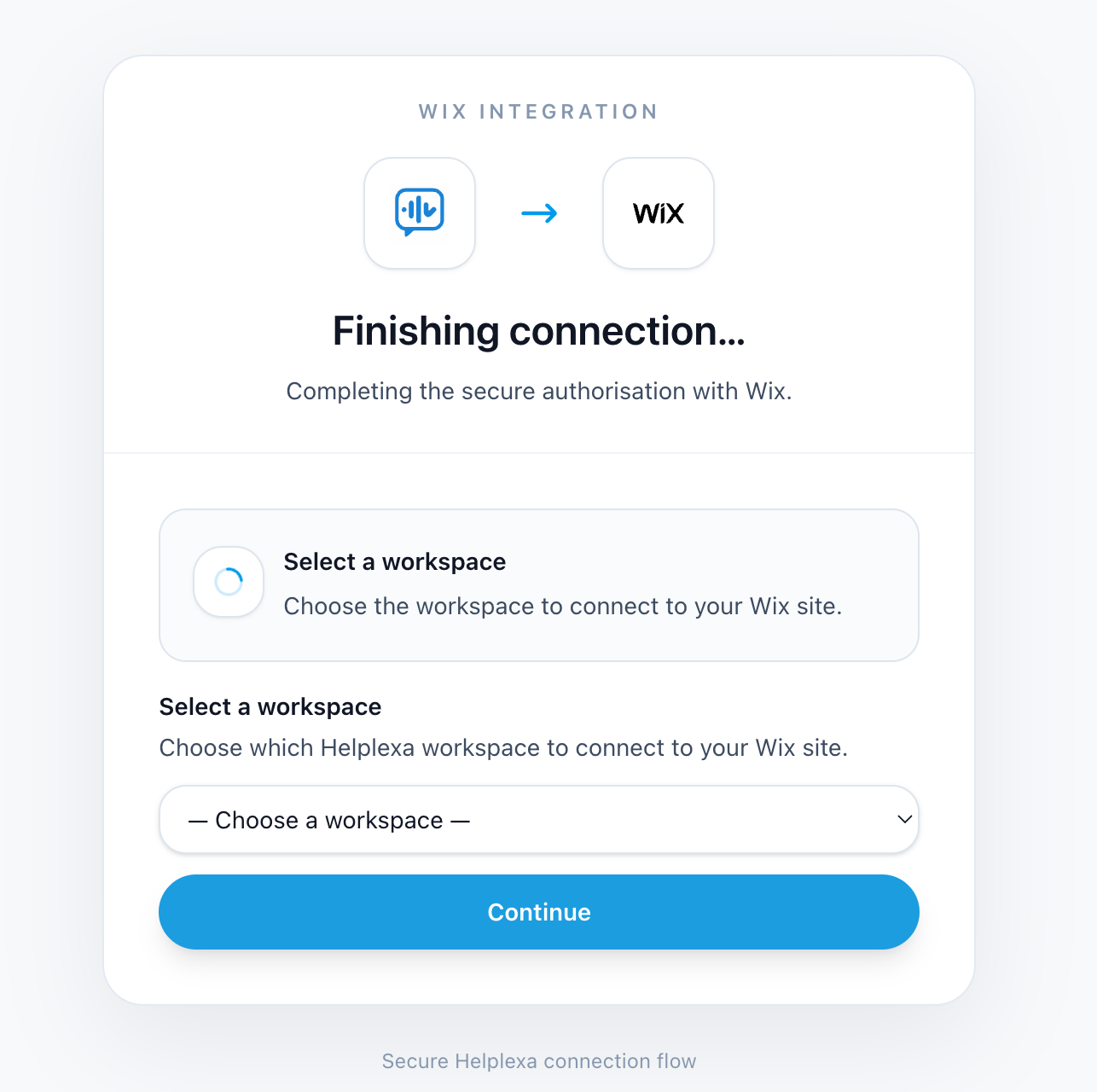
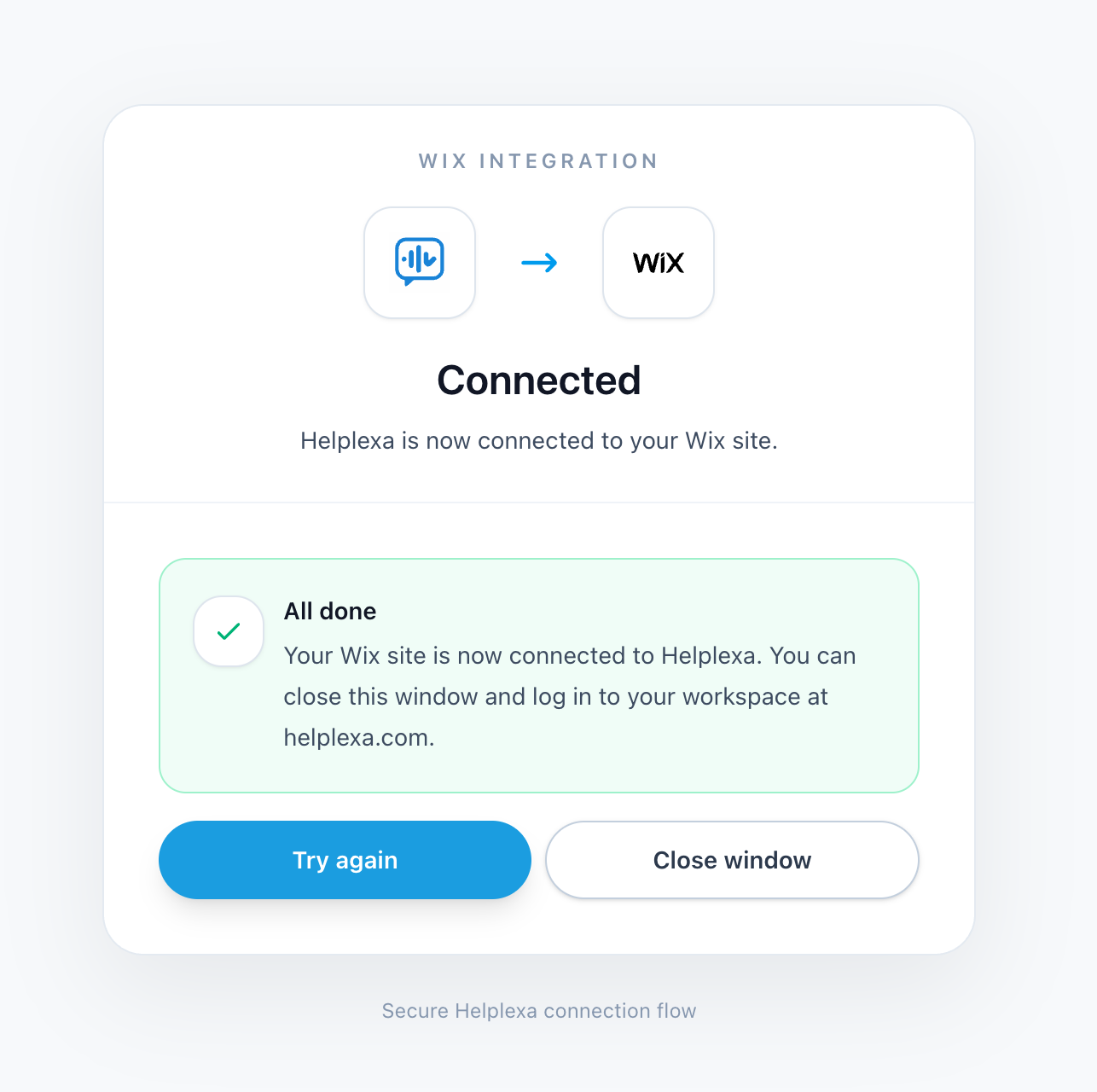
Let the connection finish processing the click Close window
View your linked Wix Websites in Helplexa
Go to Integrations and click the bolt icon for Wix.
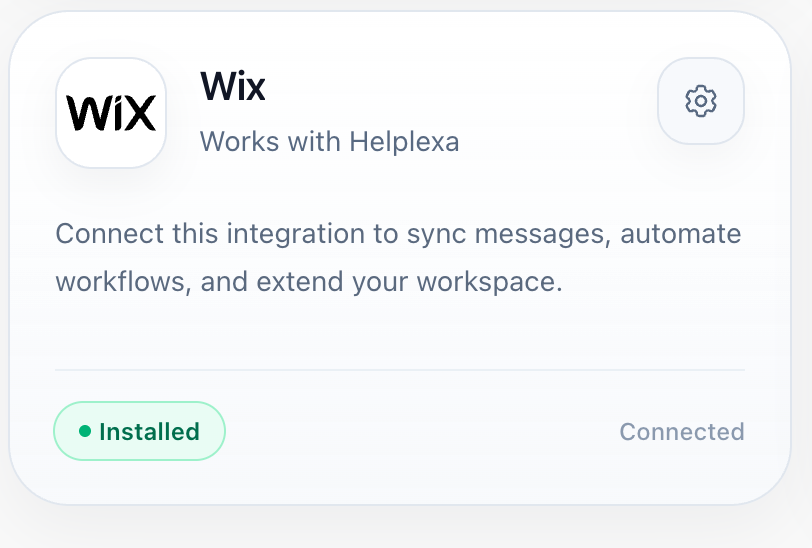
You should now be able to see linked Wix sites.
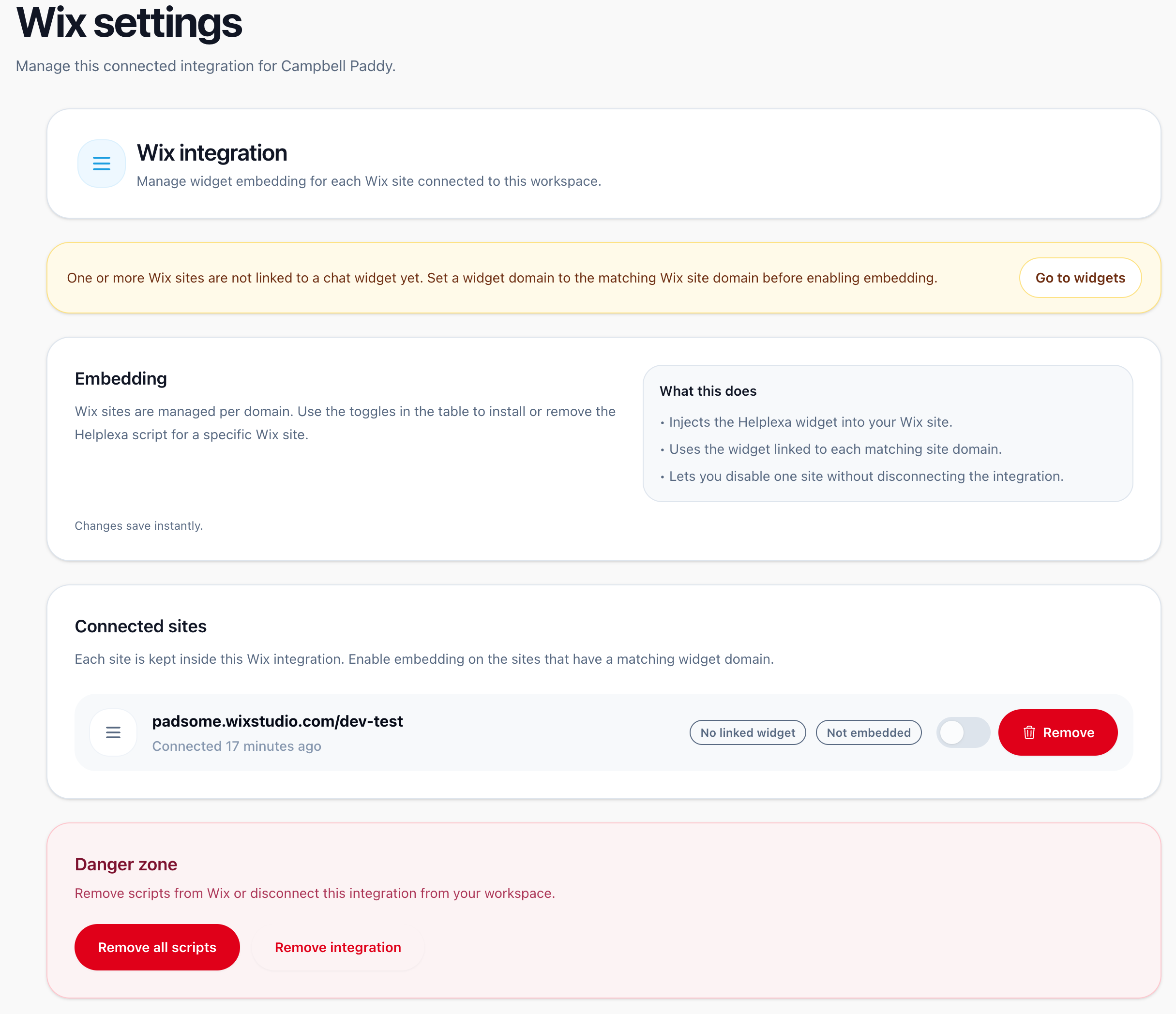
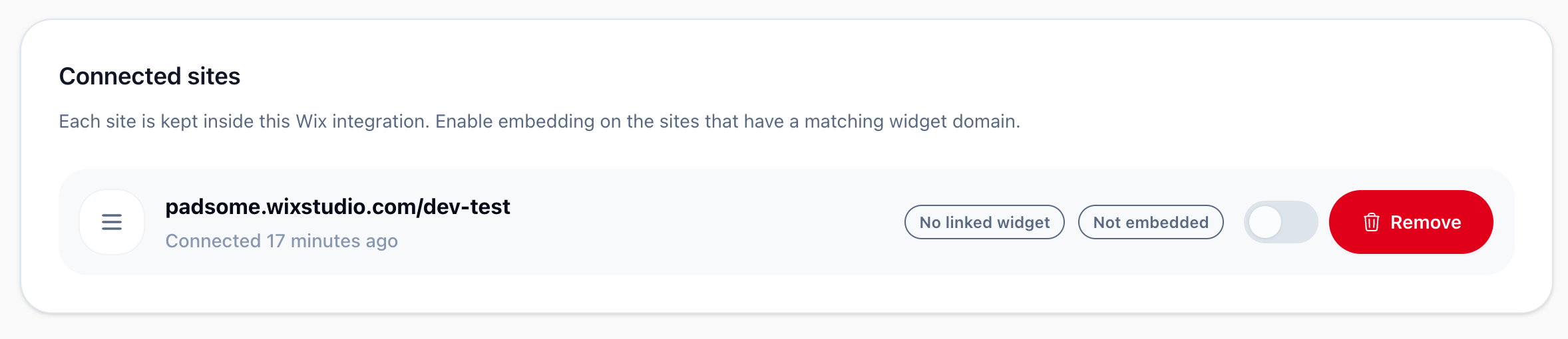
Link Your Wix Website to a Widget
In Helplexa, open Widgets and select the widget you want to use.
Open its domain settings and select Choose Integration Domain. Select your connected Wix Website and Submit.
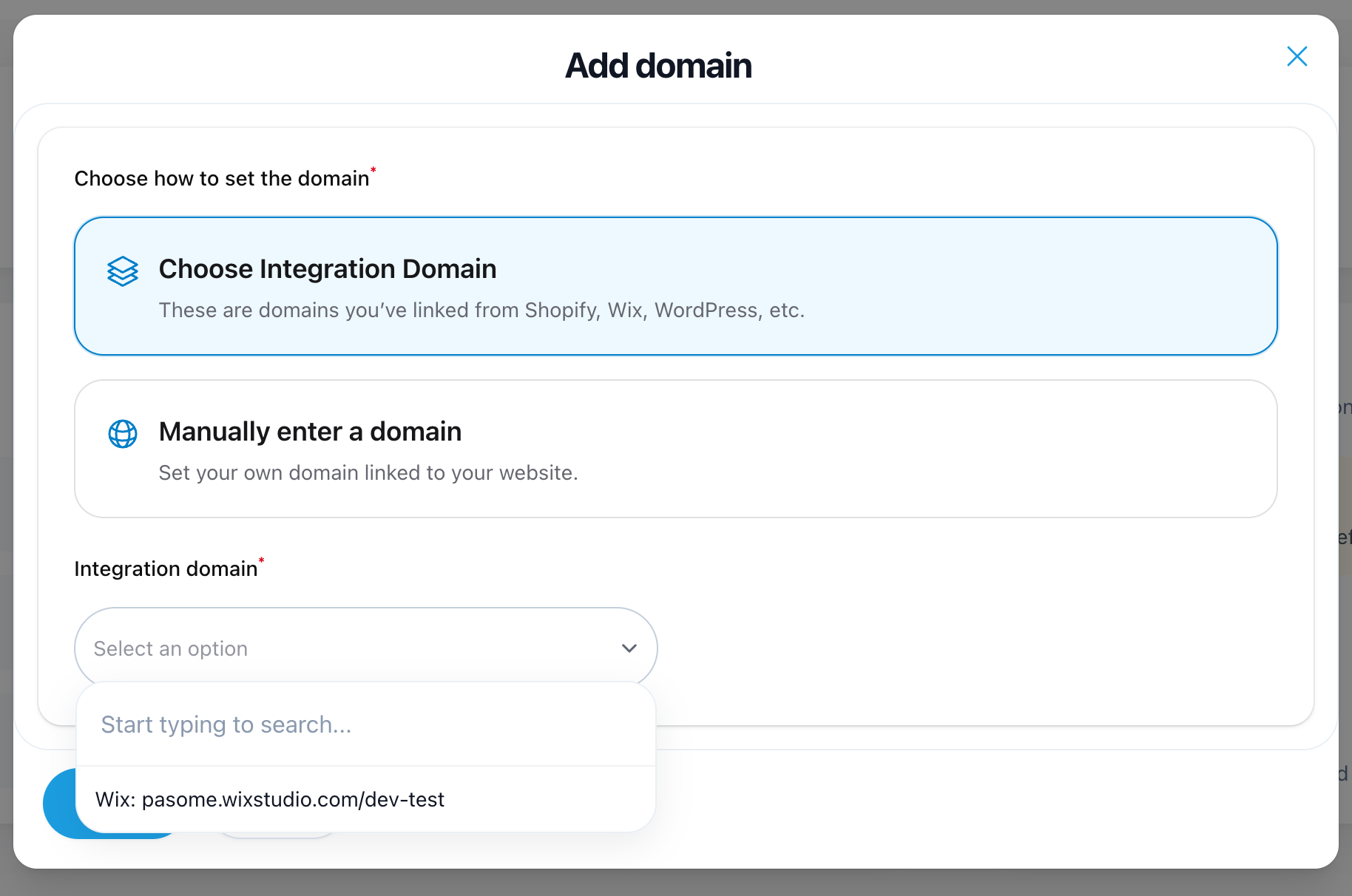
Note: Please make sure the Widget is enabled in the availability section and within your working hours.
Enable the Widget on Wix
Return to Integrations, open the Wix settings page and find your website under Connected sites.
Enable the embedding toggle for the website.
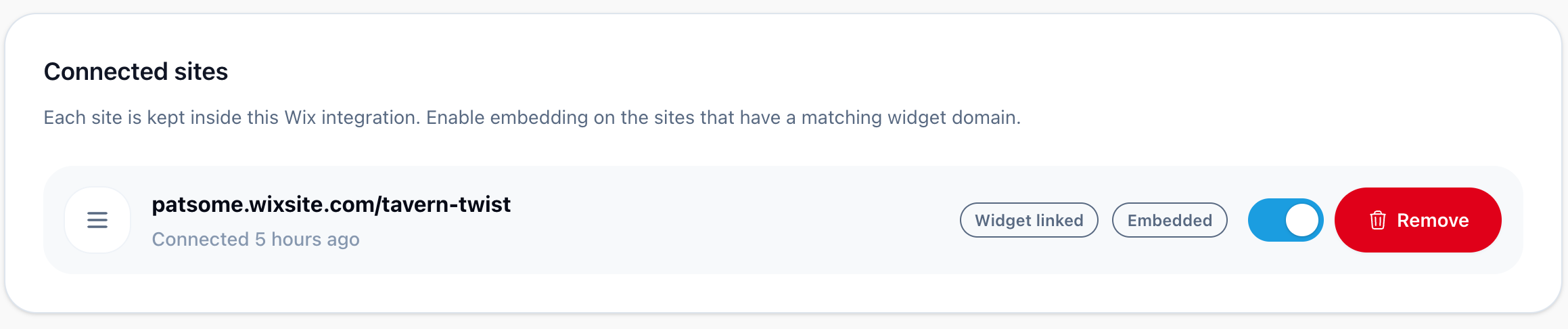
Helplexa should confirm that the widget has been installed on the Wix site.
Test Your Website
Open the published wix website in a new browser tab.
Confirm that:
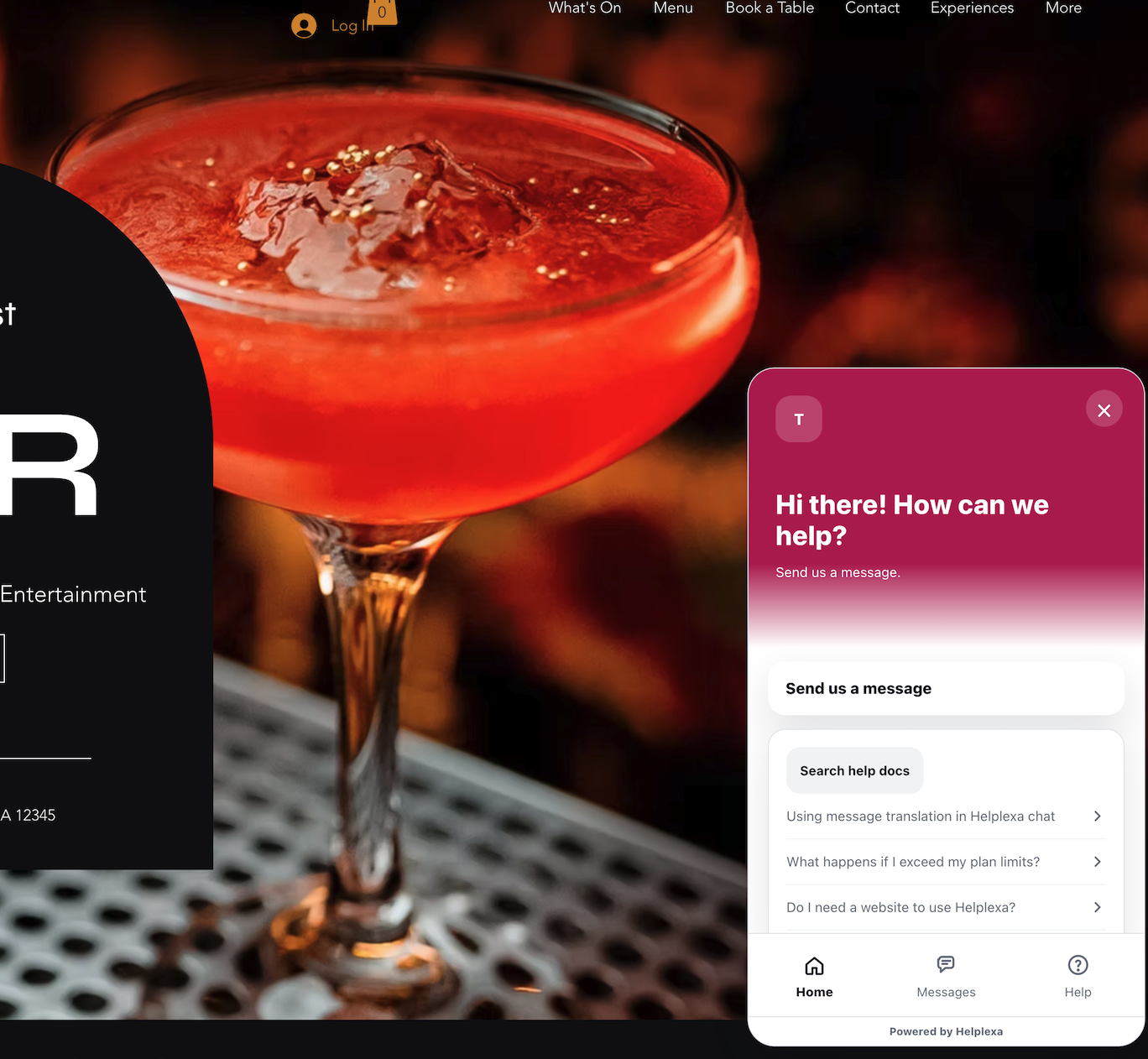
The Helplexa chat widget appears.
You can start a test conversation.
The conversation appears in your Helplexa inbox.
Wix products can be loaded from Conversation Details if Wix Stores are configured.
Known Issues
There are other Wix Marketplace Apps that offer live chat, for some, if already installed and you connect the Helplexa Wix App, your Helplexa widget may not appear. to get around this, please uninstall/remove any other live chat apps from your wix website.
Related articles
Was this article useful?