How do I connect Microsoft Teams to my Helplexa workspace?
Learn how to connect Microsoft Teams to your Helplexa workspace so your team can share and respond to customer conversations directly from Microsoft Teams.
Before you start
You will need a Microsoft work or school account with a Microsoft Teams business license. Personal Microsoft Teams accounts are not supported.
You must be an Owner or Admin of your Helplexa workspace.
The Microsoft Teams account you connect must use the same email address as your Helplexa user account.
Your Helplexa plan must have an available integration slot.
Steps
In your Helplexa workspace, go to Integrations, find Microsoft Teams and click Connect.
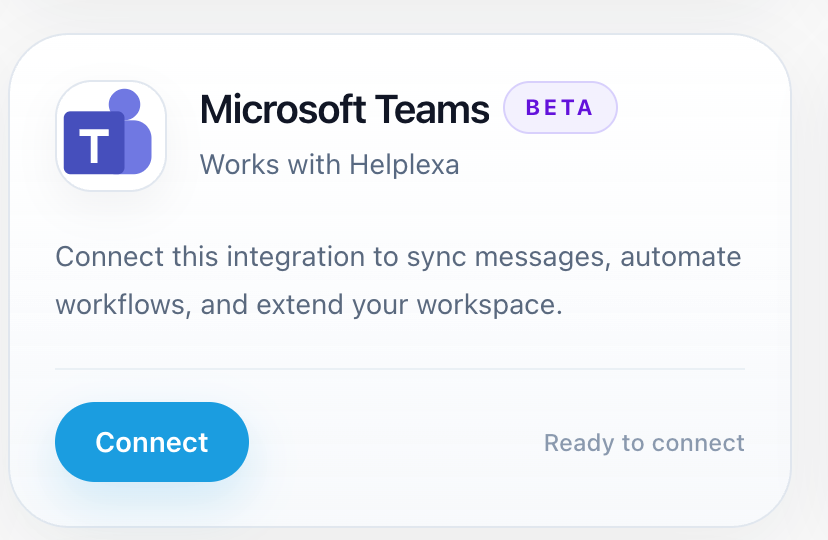
you will be redirected to Microsoft. Sign in with your Microsoft Teams business account and approve the requested permissions.
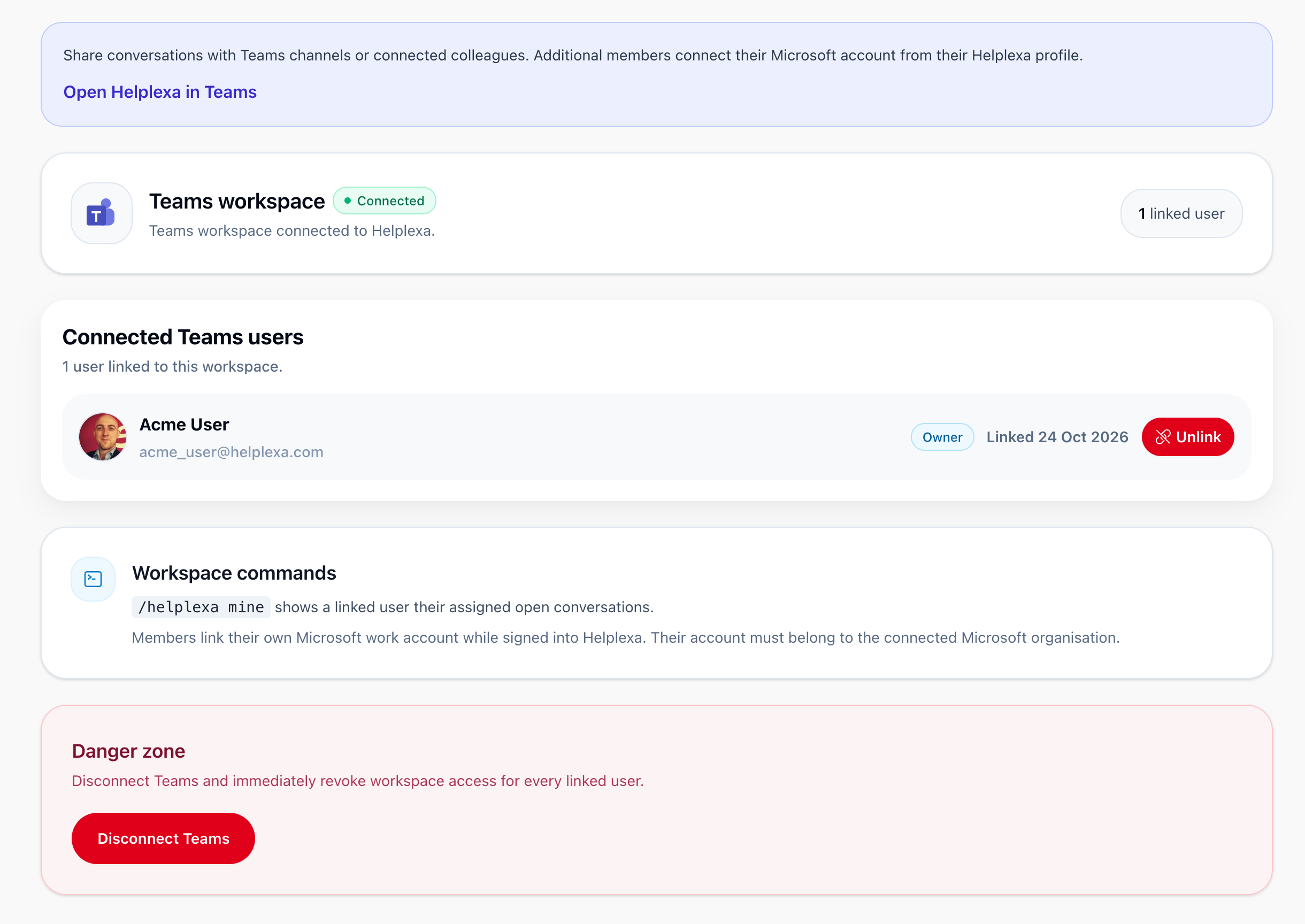
Once approved, you will be redirected back to the Microsoft Teams settings page in Helplexa. Your workspace should now be connected to Microsoft Teams.
Troubleshooting
If you cannot connect
Check that you are signing in with a Microsoft Teams business account and that its email address matches your Helplexa user account. Personal Microsoft Teams accounts cannot be connected.
You must also be an Owner or Admin of the Helplexa workspace.
If you still need help
Contact Helplexa support with your workspace name, the step where the connection failed and any error messages displayed. Include a screenshot if possible and contacting via email, do not share any access related information for your workspace or Teams account.
Related articles
Was this article useful?