How do I connect my Helplexa user account to Microsoft Teams?
Learn how to connect you Helplexa user account to Microsoft Teams so you can share customer conversations with Teams. Each user must connect their own account before they can share conversations.
Before you start
Microsoft Teams must already be connected to your Helplexa workspace by an Owner or Admin.
Your Microsoft Teams account must belong to the same organisation as the Microsoft Teams account connected to your Helplexa workspace.
Your Microsoft Teams email address must match your Helplexa user account email address.
Personal Microsoft Teams accounts are not supported.
Steps
In your Helplexa workspace, open your user profile by going to Users & Teams.

Find the Microsoft Teams option and click Connect Teams.
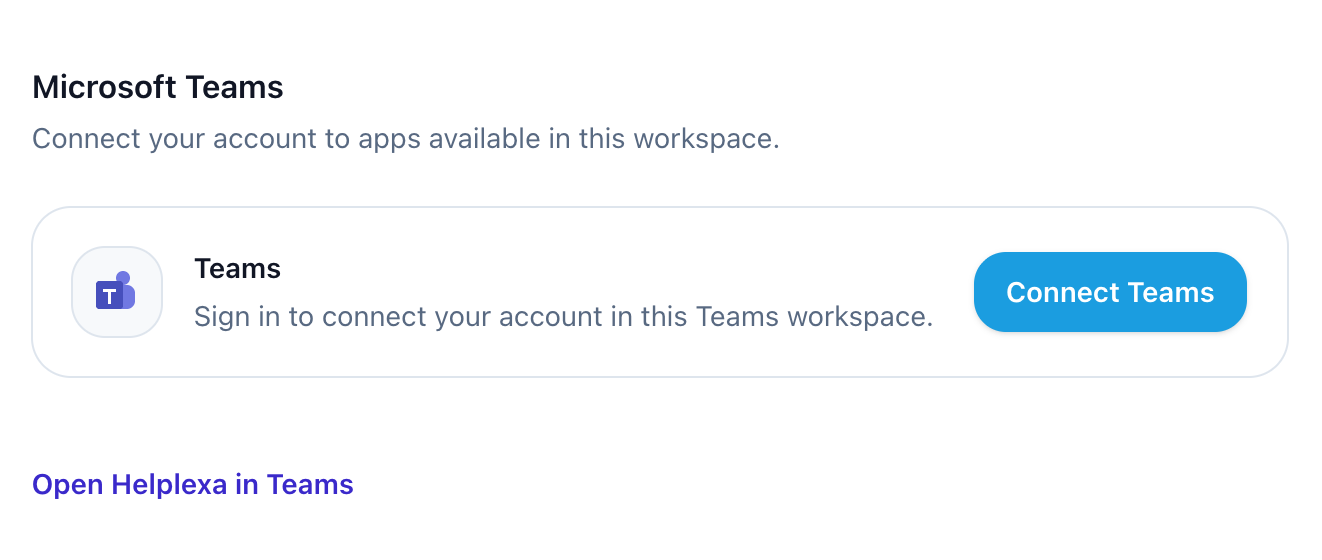
You will be redirected to Microsoft. Sign in with your Microsoft Teams business account and approve the requested permissions.
Once approved, you will be redirected back to your Helplexa user profile. Your account should now be connected, and you can now share conversations with Microsoft Teams.

Troubleshooting
If you cannot connect
Check that your Microsoft Teams account belongs to the organisation connected to your Helplexa workspace and that your email address matches your Helplexa user account.
If you cannot share conversations
Connecting Microsoft Teams to your Helplexa workspace does not automatically connect individual users. Each user must complete the steps above before they can share conversations with Teams.
If you still need help
Contact Helplexa support with your workspace name, the step where the connection failed and any error message displayed.
Related articles
Was this article useful?