How to install Helplexa for WooCommerce
Add Helplexa live chat to your WooCommerce store using the free Helplexa for WooCommerce plugin.
This guide shows you how to find, install and activate the plugin from your WordPress admin panel or from the WordPress.org plugin directory.
Before you start
You will need:
A WordPress website.
WooCommerce installed and active.
Access to your WordPress admin panel
A Helplexa workspace if you want to connect the plugin after installation
Steps
Install from your WordPress admin panel
In your WordPress admin panel:
Go to Plugins.
Select Add Plugin.
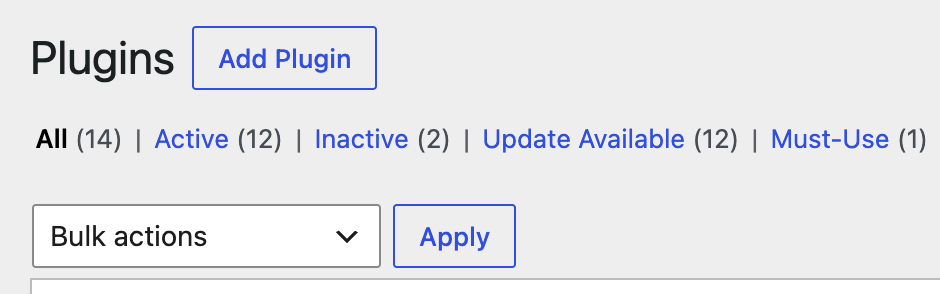
Search for Helplexa.
Find Helplexa for WooCommerce.
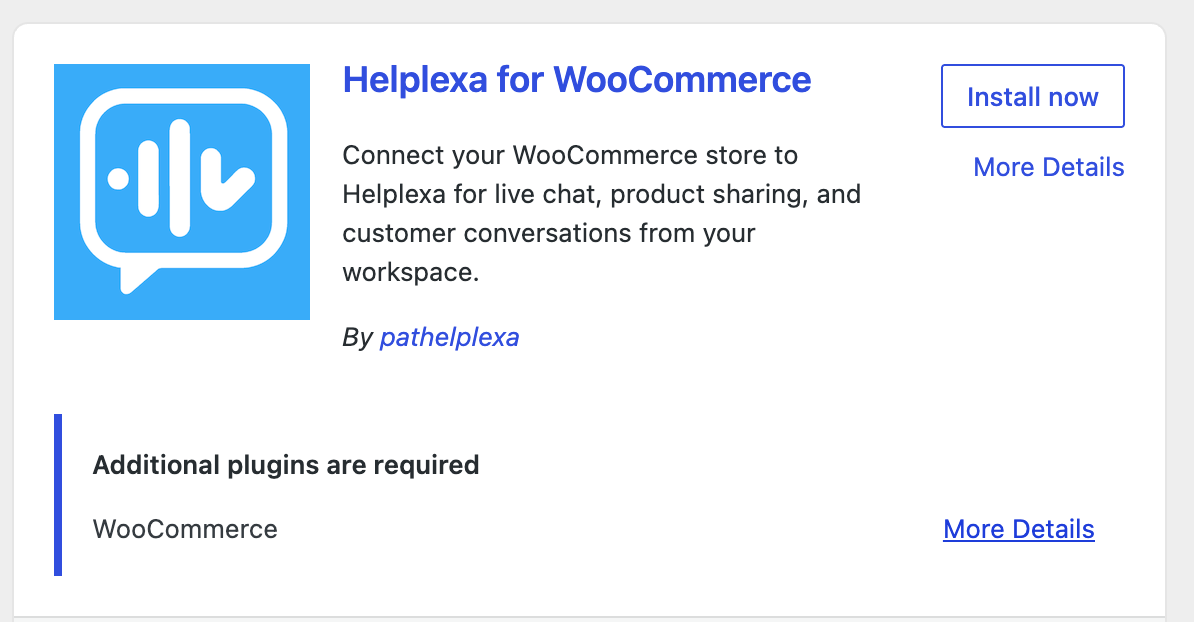
Click Install Now.
After installation, click activate.
Once activated, the plugin will be available inside your WordPress admin panel under WooCommerce -> Helplexa Chat.
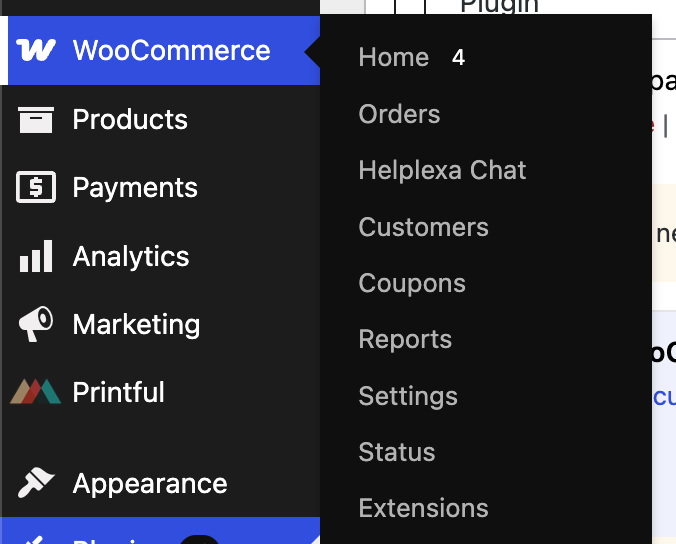
From Helplexa Chat, click Connect to Helplexa. You will be taken to Helplexa to log in to your workspace.
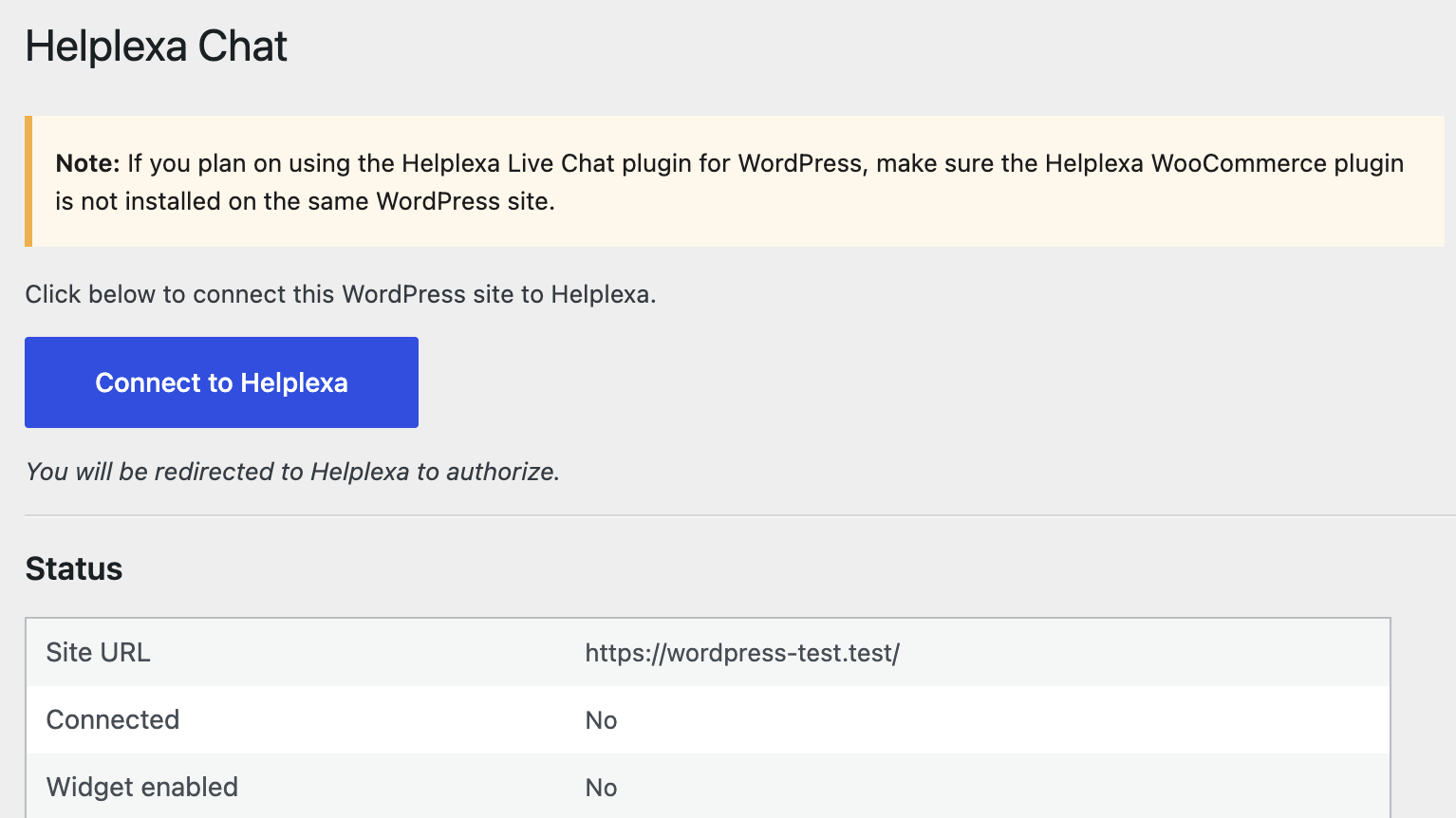
Login with your workspace and email
Once logged in, approve the connection and return to your WordPress site.
After the connection is approved, you can embed Helplexa chat widgets on your WooCommerce store without adding code manually. You can also share WooCommerce products from your Helplexa chat conversations.
Install by downloading the plugin file.
You can also install the plugin by downloading it directly from the public WordPress plugin directory.
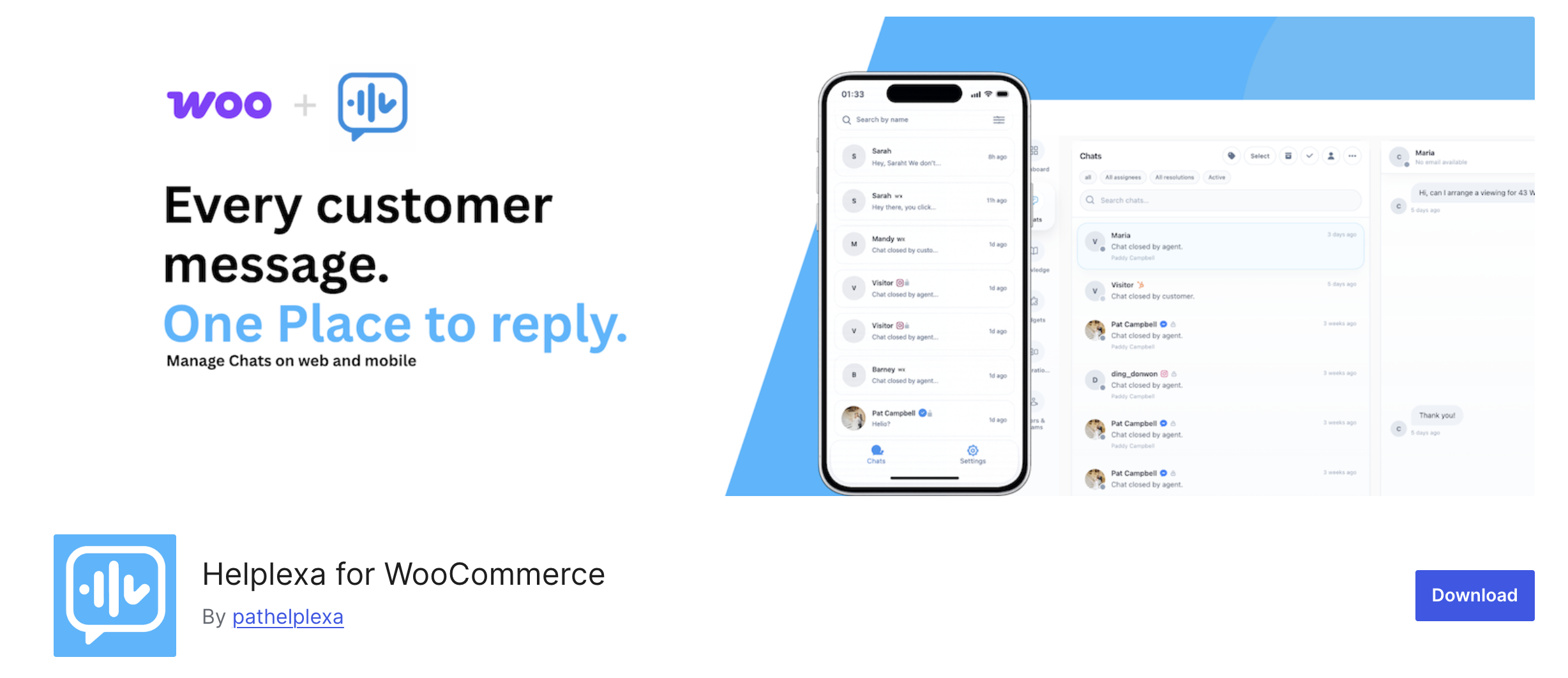
Open the Helplexa for WooCommerce plugin page Here.
Click Download to download the plugin file to your computer.
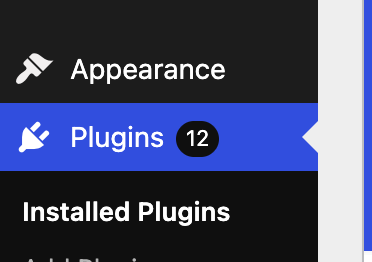
In your WordPress admin panel, got to Plugins.
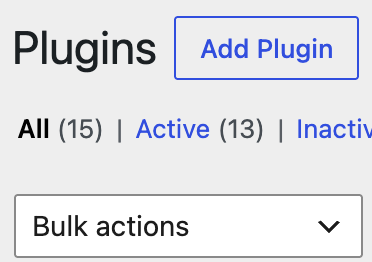
Select Add Plugin.
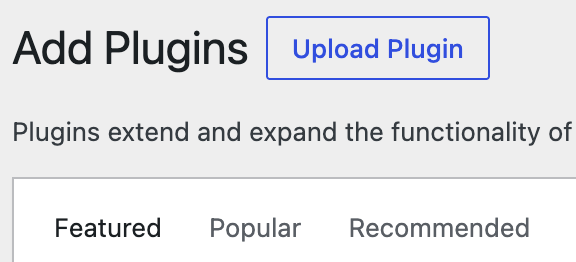
Select Upload Plugin.
Choose the file then click Install.

Once installed, activate the plugin.
Once activated, the plugin will be available inside your WordPress admin panel under WooCommerce -> Helplexa Chat.
From Helplexa Chat, click Connect to Helplexa. You will be taken to Helplexa to log in to your workspace.
Login with your workspace and email
Once logged in, approve the connection and return to your WordPress site.
After the connection is approved, you can embed Helplexa chat widgets on your WooCommerce store without adding code manually. You can also share WooCommerce products from your Helplexa chat conversations.
Other
For more detailed help with connecting your Helplexa widget to your WordPress or WooCommerce site, log in to your Helplexa workspace and view the available help guides.
You can also contact Helplexa support if you need help with installation or setup.
Useful articles
Was this article useful?