Send Calendly booking cards and links in Helplexa
Use Calendly in Helplexa chat to send booking cards or tracked booking links to customers.
Before you start
Calendly must be connected in Integrations.
At least one active Calendly event type must be synced.
For website chat, customers can book inside the widget.
The Calendly integration is currently in Beta
Steps
Open a conversation in your Helplexa workspace.
Make sure the conversation is assigned to you.
Click the Calendly icon in the conversation details section.”
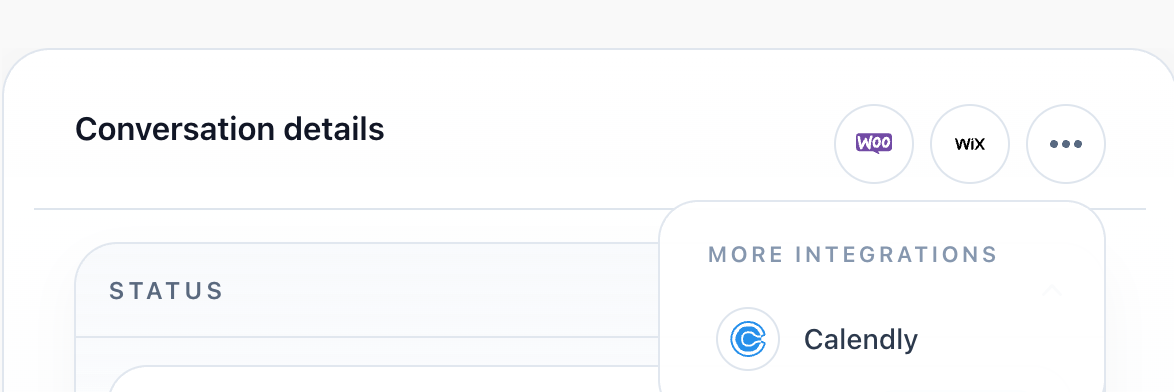
Choose the event type you want to send.
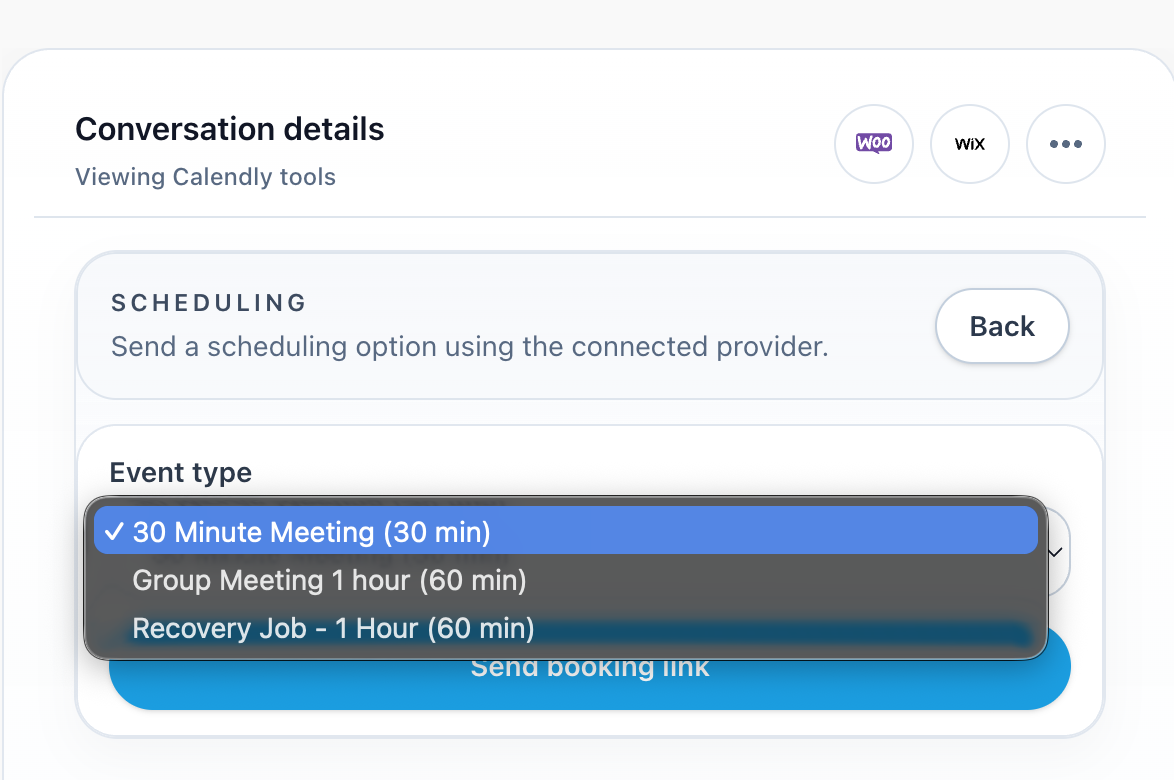
Click Send booking link.
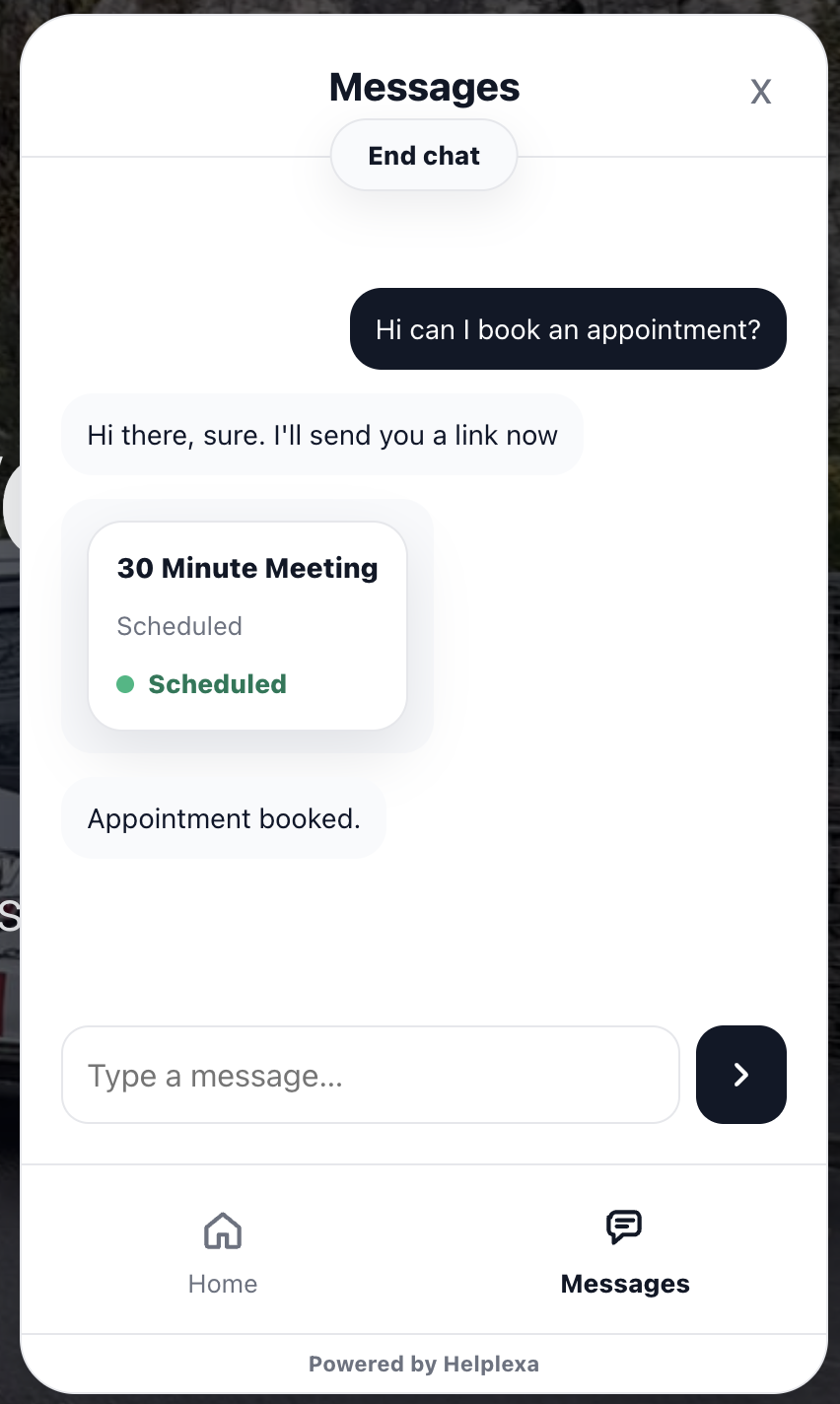
The customer receives a booking card or link, depending on the chat channel. For example, in an embedded website chat widget, they will see this:
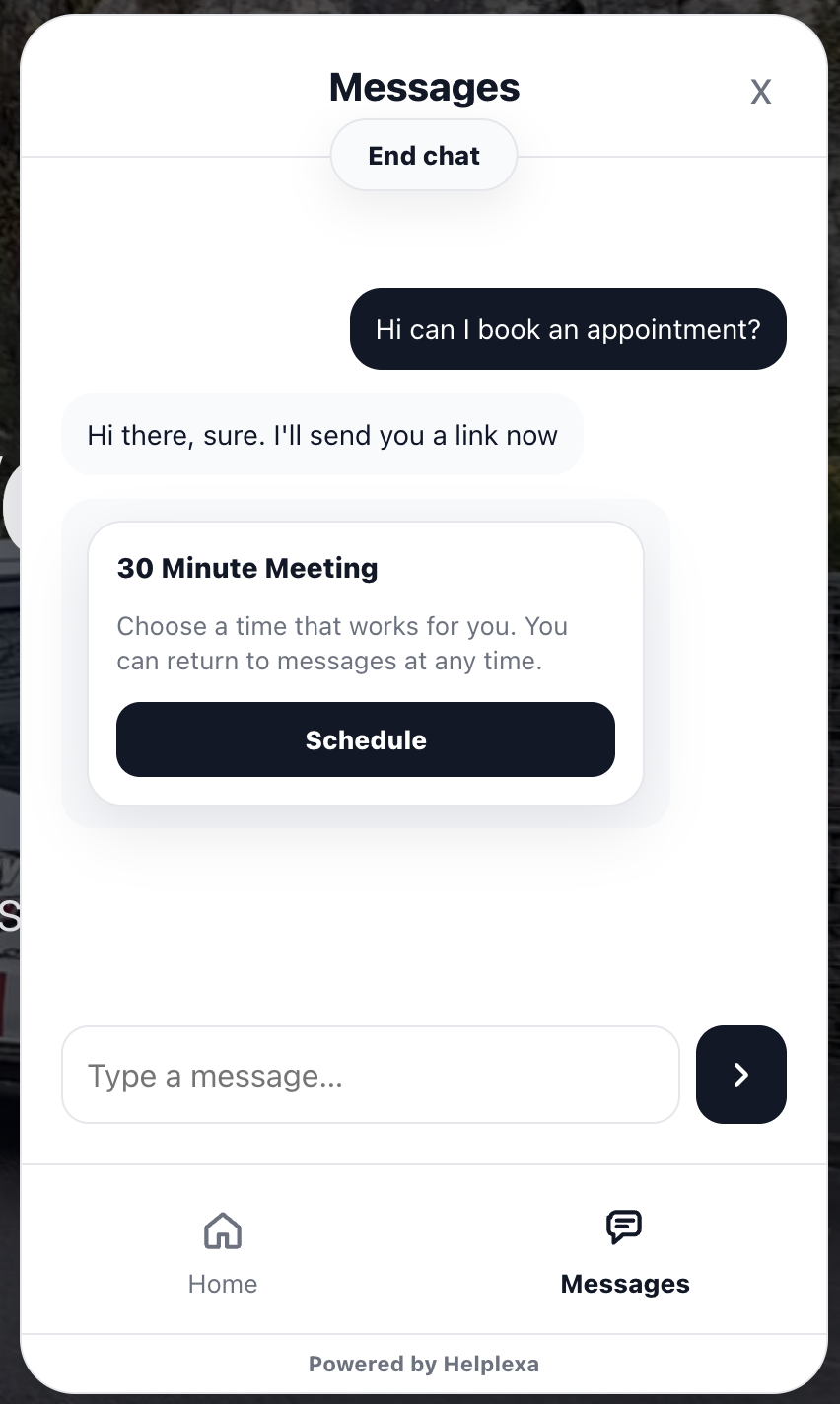
The customer can click Schedule to choose an available date and time.
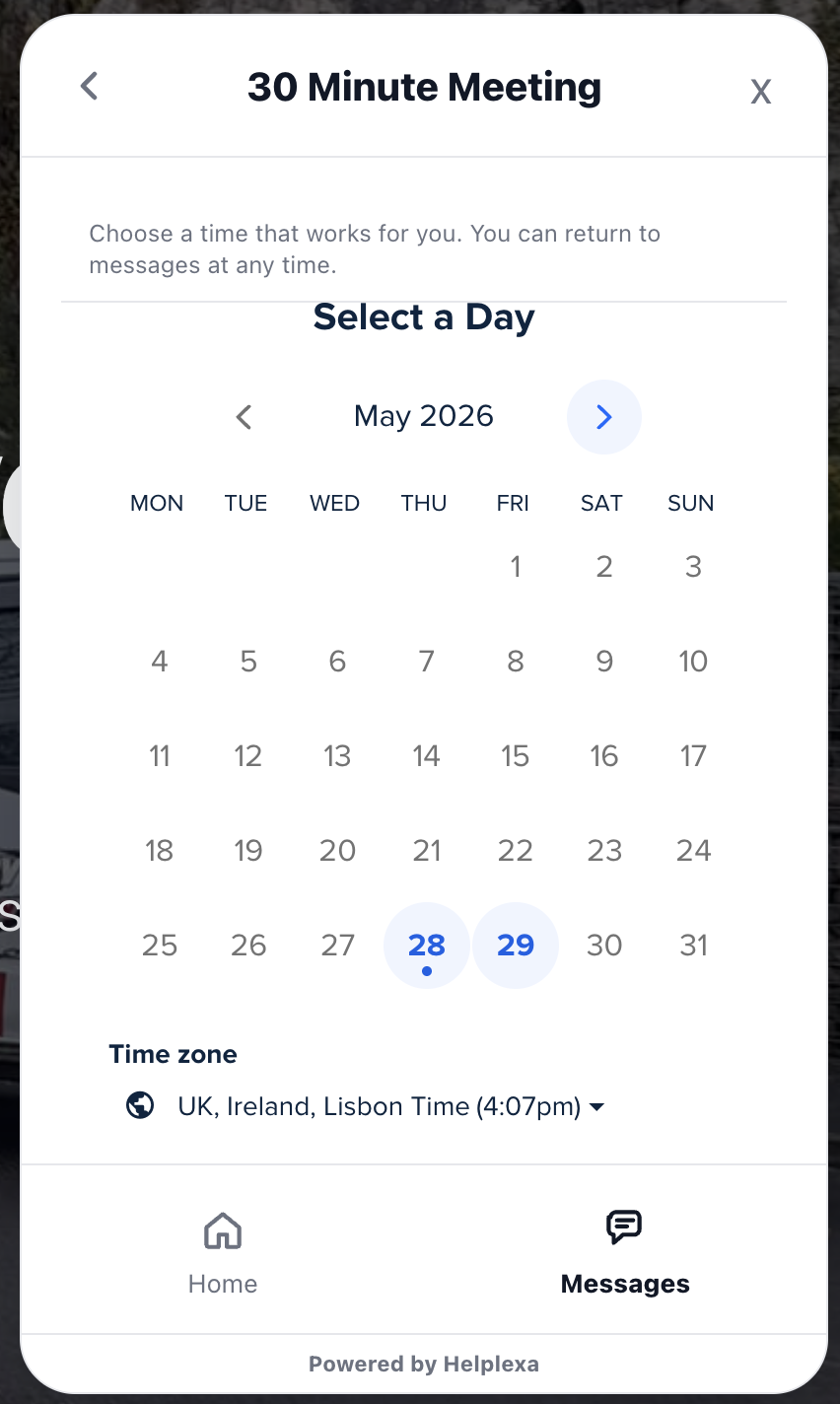
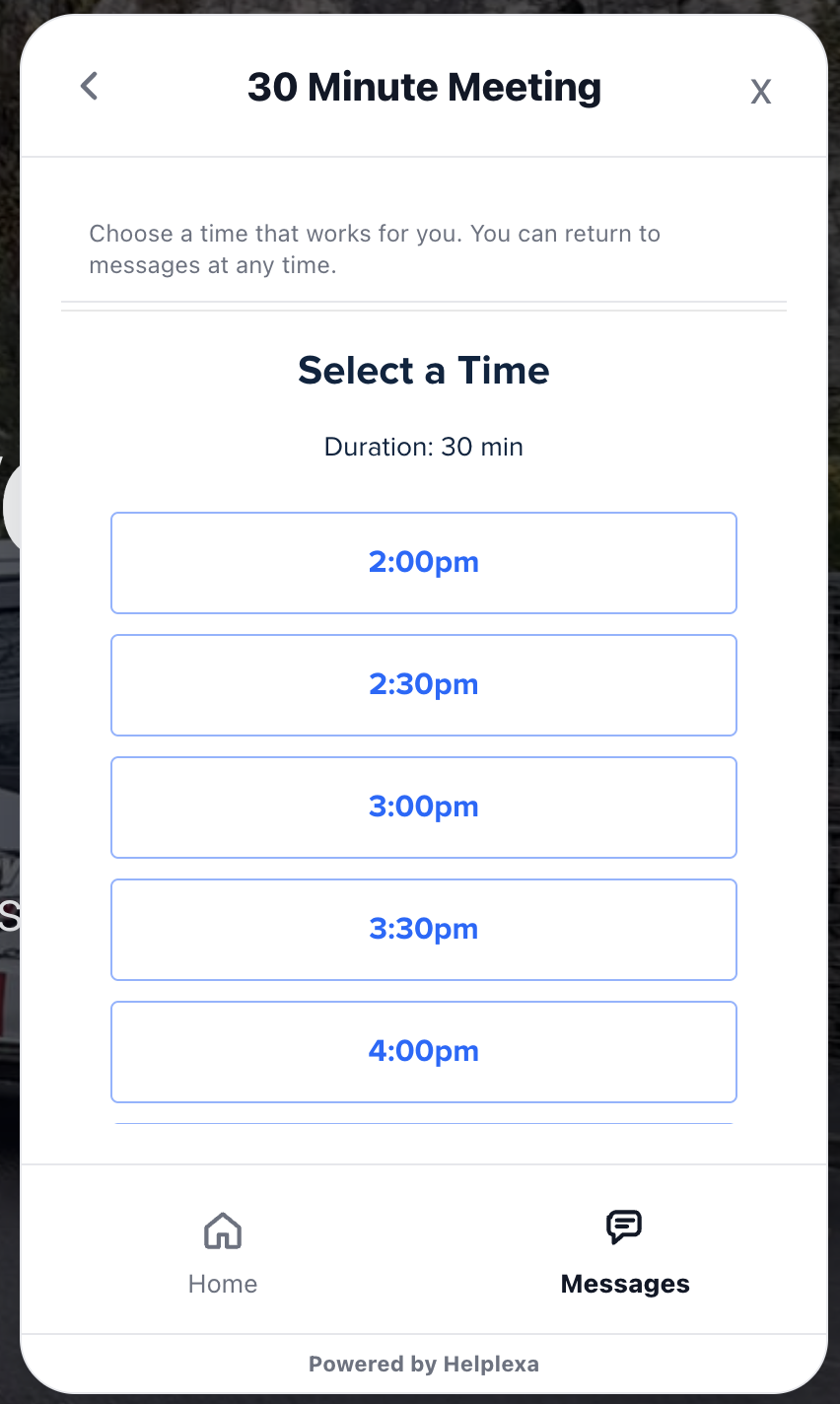
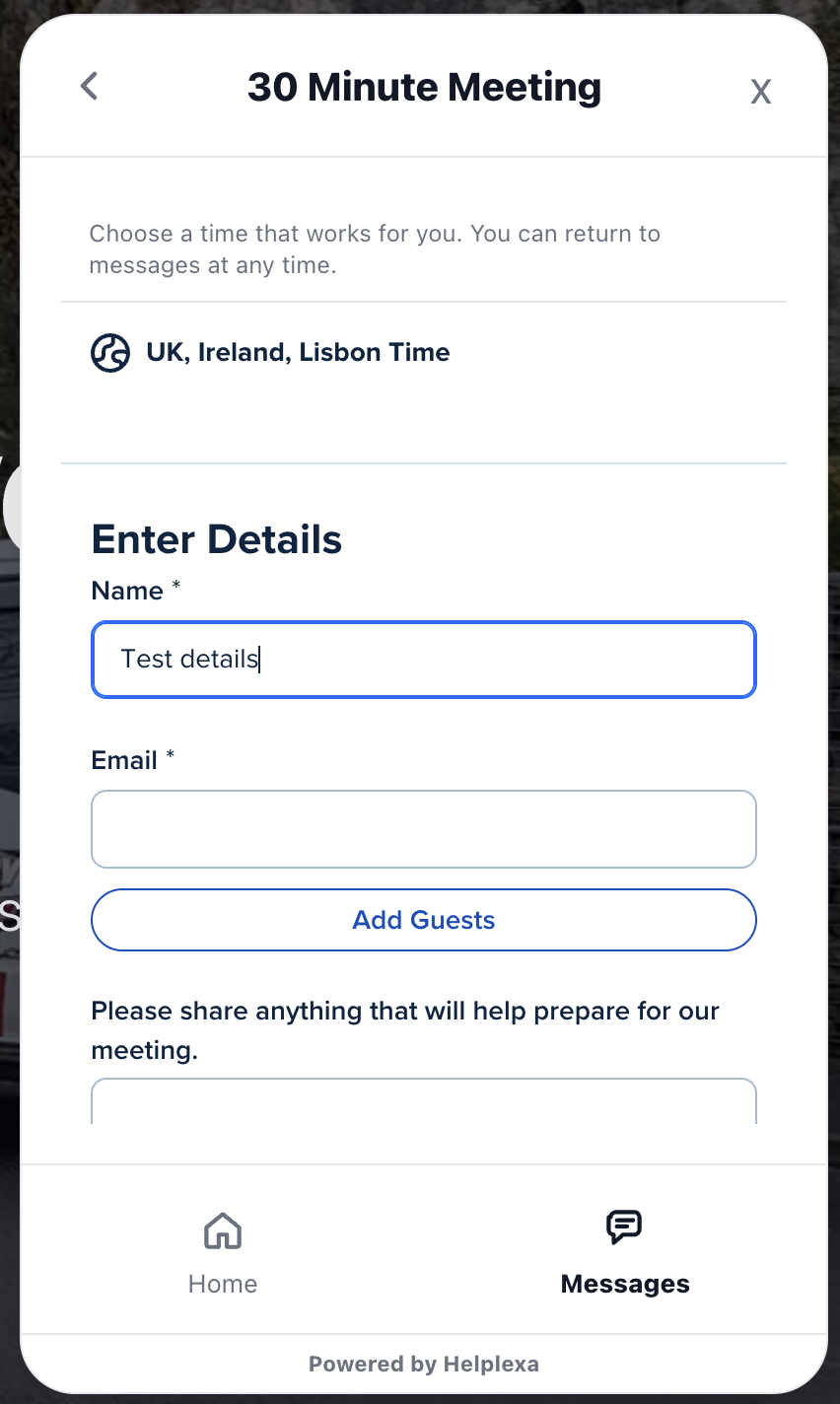
Once the customer confirms, they will receive a confirmation email and see a confirmation message in chat.
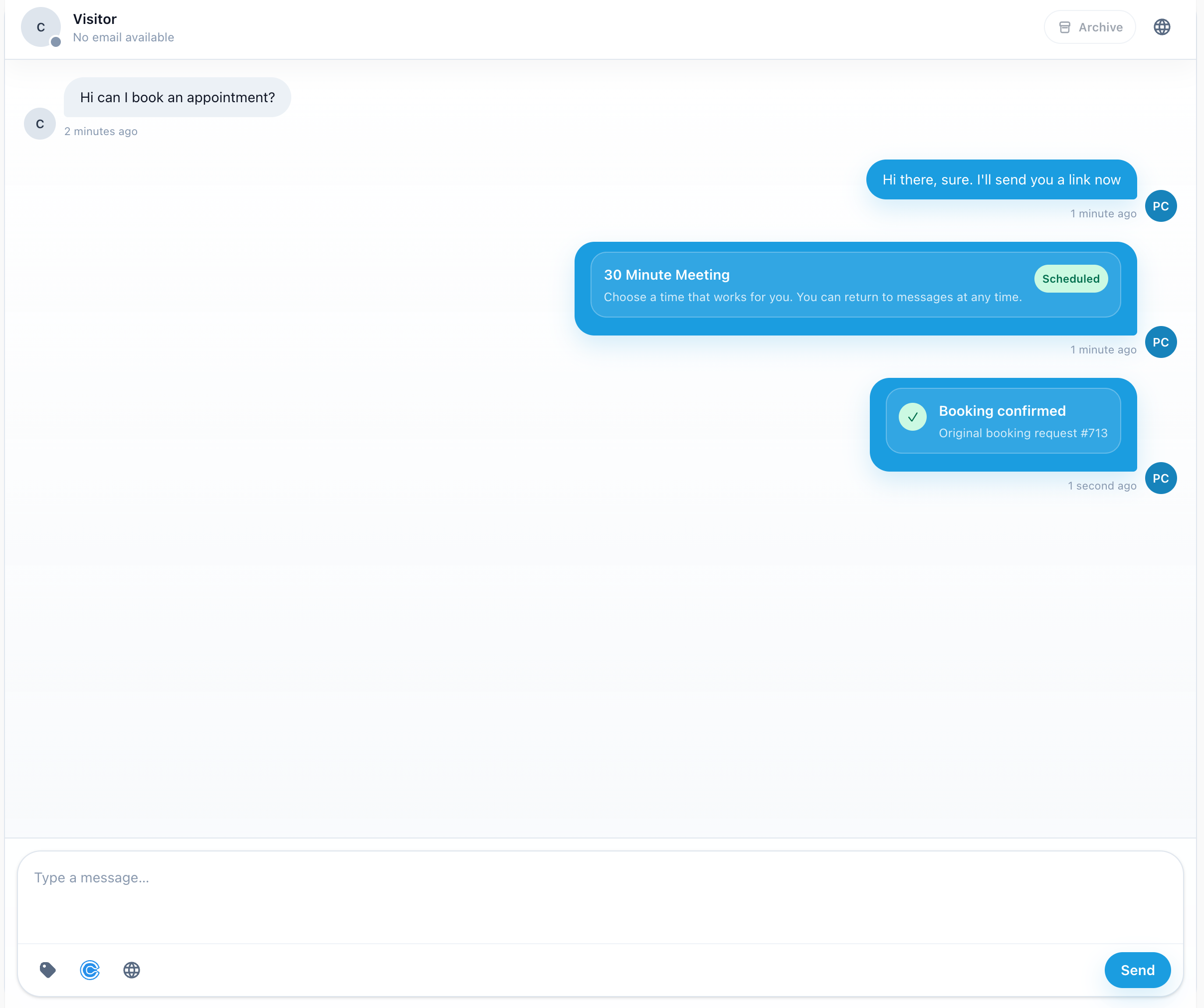
You will also see a confirmation message in your Helplexa workspace.
Share a direct link
Alternatively, you can share a direct booking link in chat.
In the chat composer, click the Calendly icon to load your event types.
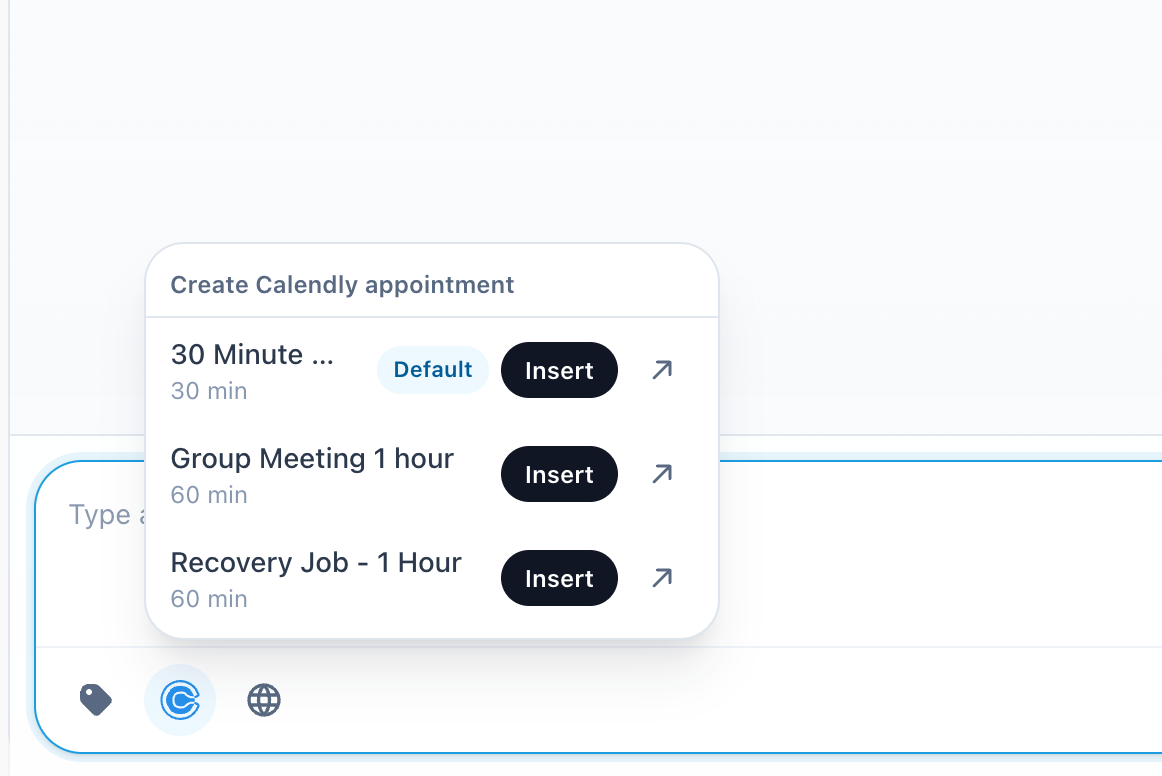
Click the arrow to open the Calendly booking page, or click Insert to add the link to your message.
Related articles
Was this article useful?