How to add Helplexa live chat to Squarespace
Looking for a way to add live chat to your Squarespace website? Helplexa can be installed in just a few minutes using Squarespace Code Injection, allowing visitors to chat with your team directly from your website.
Before you start
You have a Helplexa workspace.
You have created a chat widget in Widgets.
You have copied your Helplexa widget installation code.
You have access to edit your Squarespace website.
NOTE: Adding custom code may only be available on certain Squarespace plans.
Steps
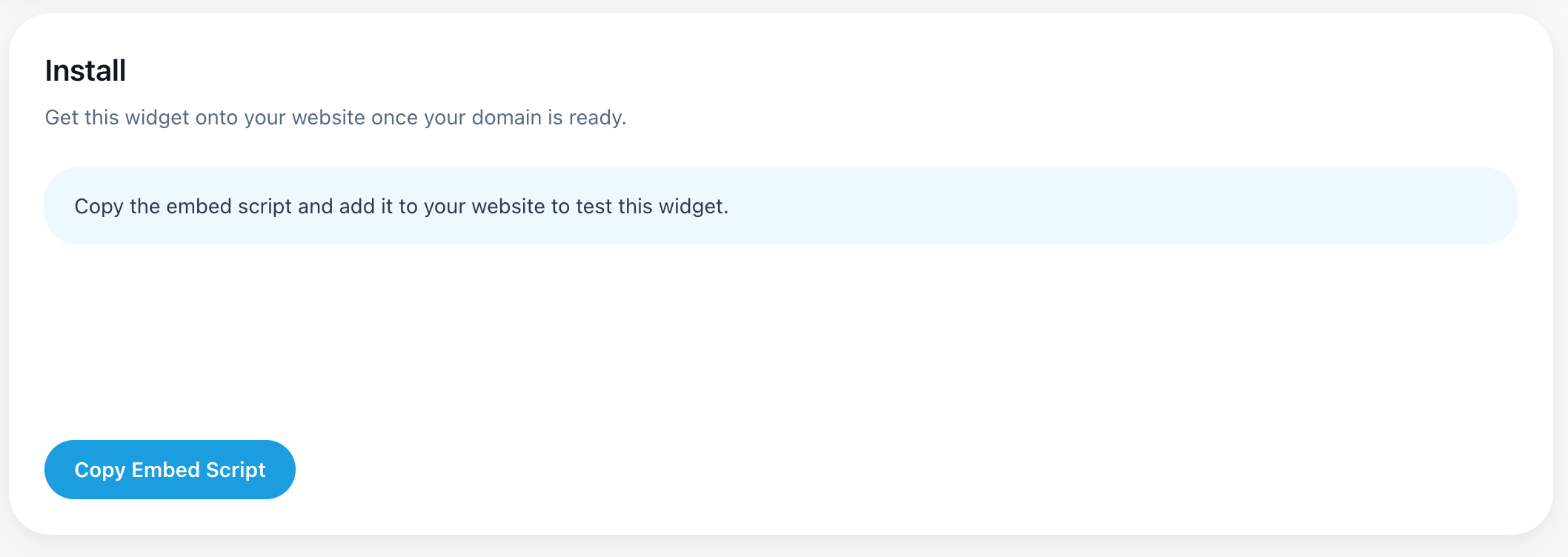
1. Copy your Helplexa widget code
In your Helplexa workspace:
Open Widgets.
Choose the widget you want to install.
Copy the widget installation code.
2. Open your Squarespace website
In Squarespace:
Sign in to your Squarespace account.
Open the website you want to install Helplexa on.
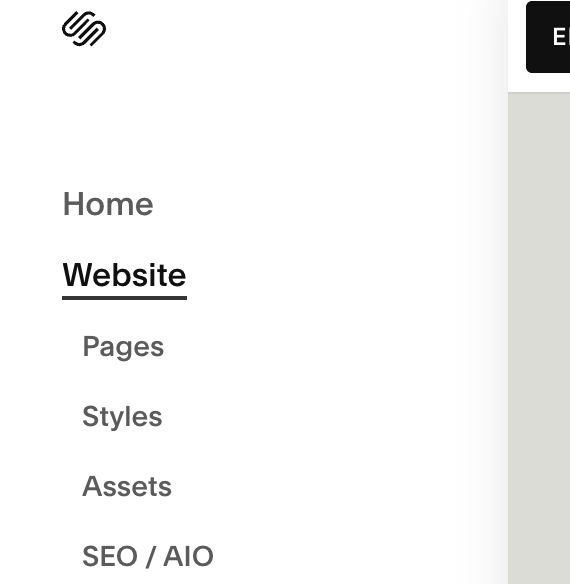
In the left menu, under Website, click Pages.
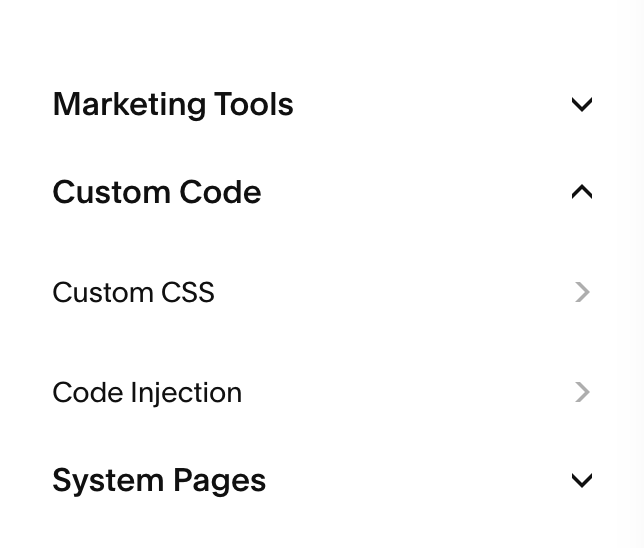
In the left menu, open Custom Code, then select Code Injection.
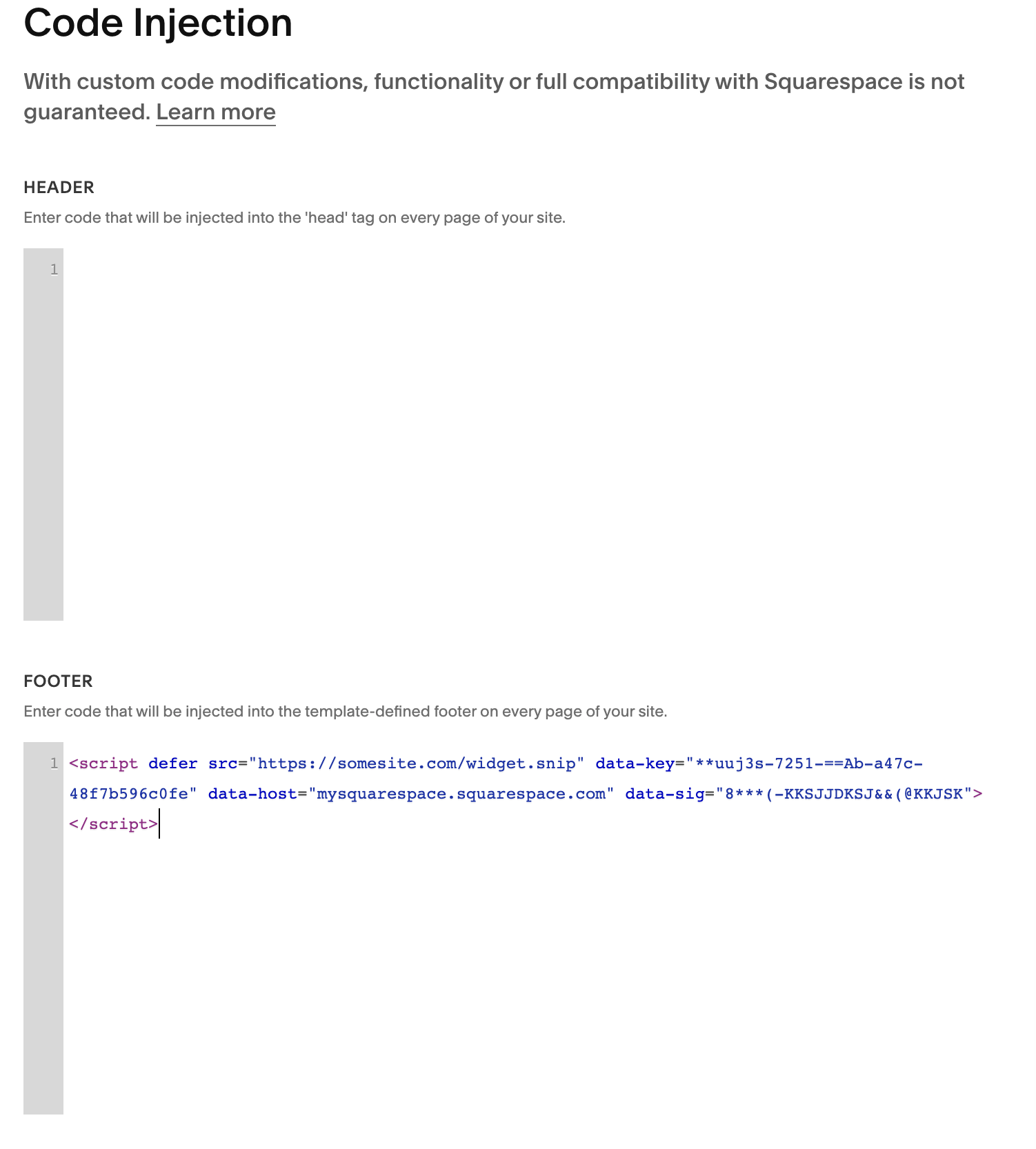
In the Code Injection page, under Footer, paste the widget snippet.
3. Save and check your website
Click Save at the top.
Refresh your website.
The Helplexa chat widget should now appear in the bottom corner of every compatible page.

Troubleshooting
The widget does not appear
Check that:
The correct Helplexa code was copied.
The code was pasted into the Footer code injection area.
The website has been saved.
Your browser cache has been refreshed.
If you still need help
When contacting Helplexa support, include:
Your Squarespace website URL.
Your Helplexa workspace name.
A screenshot of your Squarespace Code Injection settings.
Related articles
Was this article useful?